How to Export More Than 2,500 Leads From Sales Navigator
Sales Navigator stops at 2,500 results per search. Here is how to split a big search into pieces that each fit, so you can export every lead.
By Mehran Iqbal, Co-Founder & CEO of GrabProspect7 min read
Short answer
Sales Navigator only shows the first 2,500 results of any search (100 pages of 25). To get more, split the search into smaller searches that each return fewer than 2,500 results, using filters like seniority, function, company headcount or geography, then export each piece. GrabProspect's query splitter does this automatically and tells you how much of the original search the pieces cover.
If your Sales Navigator search says "12,400 results", you can't page past the first 2,500 of them. Page 100 is the last page, and every lead after that is simply out of reach. No export tool, Chrome extension or paid plan changes this, because the cap is in Sales Navigator itself.
The good news: the cap applies per search, not per account. Split one big search into several smaller ones that each return fewer than 2,500 results, and together they reach the whole market. This guide shows how to do that by hand, how to check you didn't miss anyone, and how to automate it.
Why Sales Navigator stops at 2,500
Sales Navigator shows 25 leads per page and stops at page 100. That is 2,500 leads, whatever the search says it found. The same limit applies to account (company) searches.
What this means in practice:
- A search for "Marketing Manager in the United States" might report 180,000 results. You can only ever see 2,500 of them.
- Sorting doesn't help. Sales Navigator decides which 2,500 you see, and you can't ask for "results 2,501 to 5,000".
- Exporting through any tool still reads those same 100 pages.
So the only way to reach everyone is to make each search small enough.
The idea: split the search on a filter
Take one search and run it several times, each time adding one more filter value that divides the results into groups that don't overlap.
Example: "Marketing Manager, United States" has 9,800 results. Add the Seniority filter:
| Search piece | Results |
|---|---|
| Marketing Manager, US, Seniority: Manager | 4,100 |
| Marketing Manager, US, Seniority: Senior | 2,300 |
| Marketing Manager, US, Seniority: Director | 1,900 |
| Marketing Manager, US, Seniority: Entry | 1,500 |
Three pieces now fit under 2,500. The first one (4,100) still doesn't, so you split that piece again on another filter, such as Company headcount:
| Search piece | Results |
|---|---|
| ...Seniority: Manager, Headcount 1-50 | 1,350 |
| ...Seniority: Manager, Headcount 51-500 | 1,600 |
| ...Seniority: Manager, Headcount 501+ | 1,150 |
Now every piece fits, and together they cover the original 9,800.
Which filters split best
A good splitting filter has two qualities: every lead has exactly one value (so pieces don't overlap and nobody falls between them), and the values divide people fairly evenly.
| Filter | Good for splitting? | Why |
|---|---|---|
| Seniority level | Very good | Every profile has one; 10 values spread people out |
| Company headcount | Very good | One value per company; size bands divide markets evenly |
| Function | Good | Usually one per person; many values |
| Geography (region, then city) | Good | Clean, non-overlapping; drill down as needed |
| Years in current company | Good | Ranges don't overlap |
| Industry | Fair | Some companies sit in odd industries; check coverage |
| Current job title | Fair | Titles overlap ("Marketing Manager" and "Manager, Marketing") |
| Keywords | Poor | Matches overlap a lot; easy to double count or miss people |
Split on Seniority or Headcount first, then on Function or Geography for any piece that is still too big.
Step by step: splitting a search by hand
- Build your search with the filters you actually care about. Note the result count.
- If it's under 2,500, you're done. Export it.
- If it's over, add the Seniority filter and pick one value. Note the count. Repeat for every value. Save each as its own search (or copy each URL into a spreadsheet).
- For each piece still over 2,500, add a second filter (Company headcount works well) and split again.
- Keep a tally. Add up the counts of the final pieces and compare with the original total.
- Export each piece. Each one now fits under the 2,500 cap.
A spreadsheet with one row per piece (URL, filters, count) keeps this manageable. Expect 5 to 20 pieces for a search of 10,000 to 50,000 results.
Check you didn't miss anyone
Splitting is only useful if the pieces really add up to the original search. Two things go wrong:
- Gaps: some profiles have no value for the filter you split on. For example, a profile with no seniority set won't appear in any Seniority piece. Compare your total with the original count. If the pieces add up to 9,400 of 9,800, about 400 people sit in no piece.
- Overlaps: filters like Job title and Keywords match the same person more than once. Your pieces then add up to more than the original, and you export duplicates.
The fix for gaps is to split on filters every profile has (Headcount and Geography come from the company or location, so they're almost always present). The fix for overlaps is to remove duplicates after exporting, by profile URL. Most export tools, and GrabProspect, store each lead once however many searches find them.
Do this on autopilot with GrabProspect
Scrape Sales Navigator (even searches over 2,500), send personal invites, follow up until people reply and answer every reply from one inbox. Try it free for 7 days with your own LinkedIn account.
Doing it automatically with a query splitter
Splitting by hand works, but a 50,000-result search can take an hour of clicking and a spreadsheet to track it. A query splitter does the same steps for you:
- You paste one Sales Navigator search URL.
- It checks the live result count.
- If the count is over the limit, it adds one splitting filter value at a time, checking each piece's real count, and keeps splitting any piece that is still too big.
- It stops when every piece fits, and reports coverage: how many of the original results the pieces reach.
- You scrape all the pieces together.
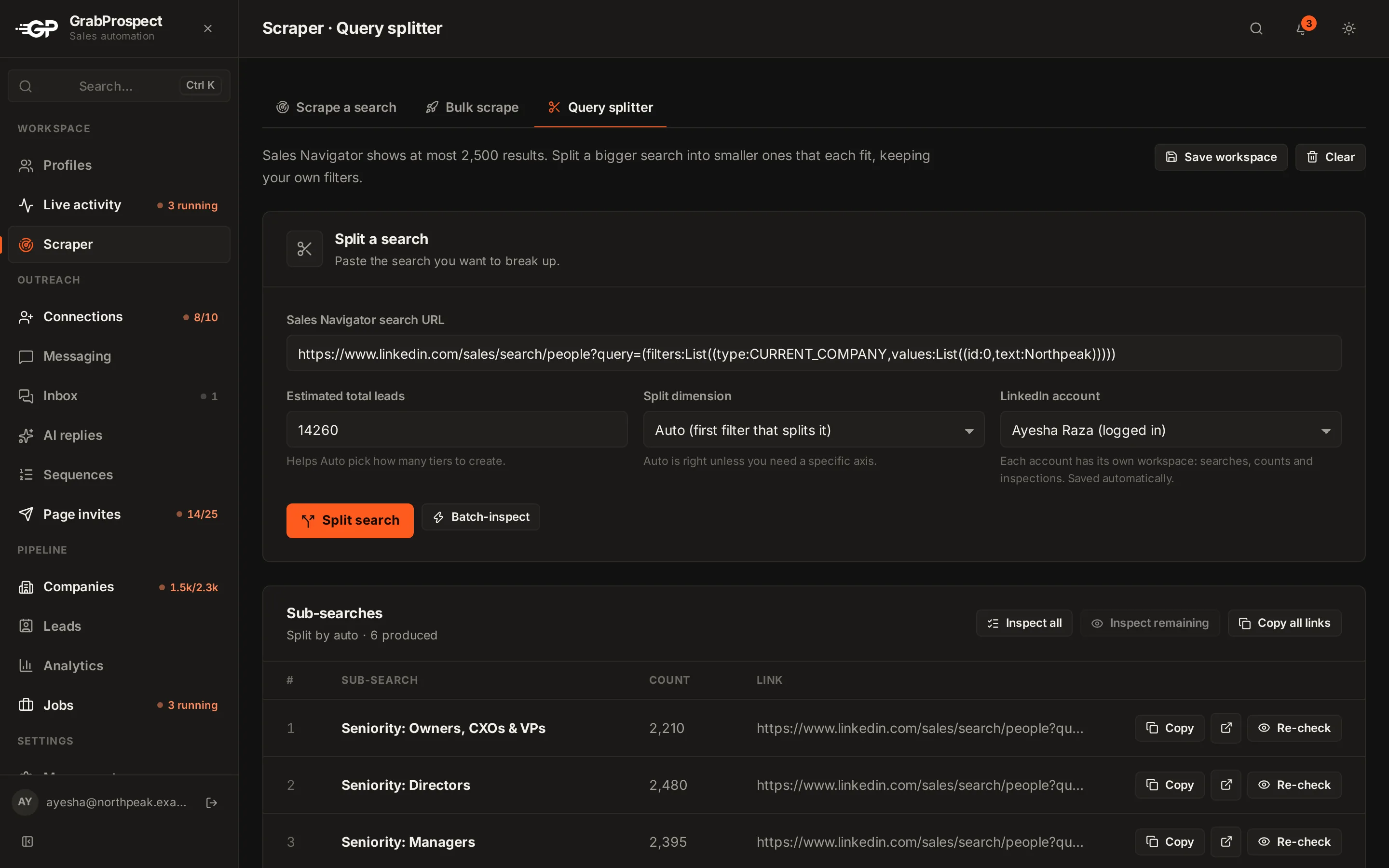
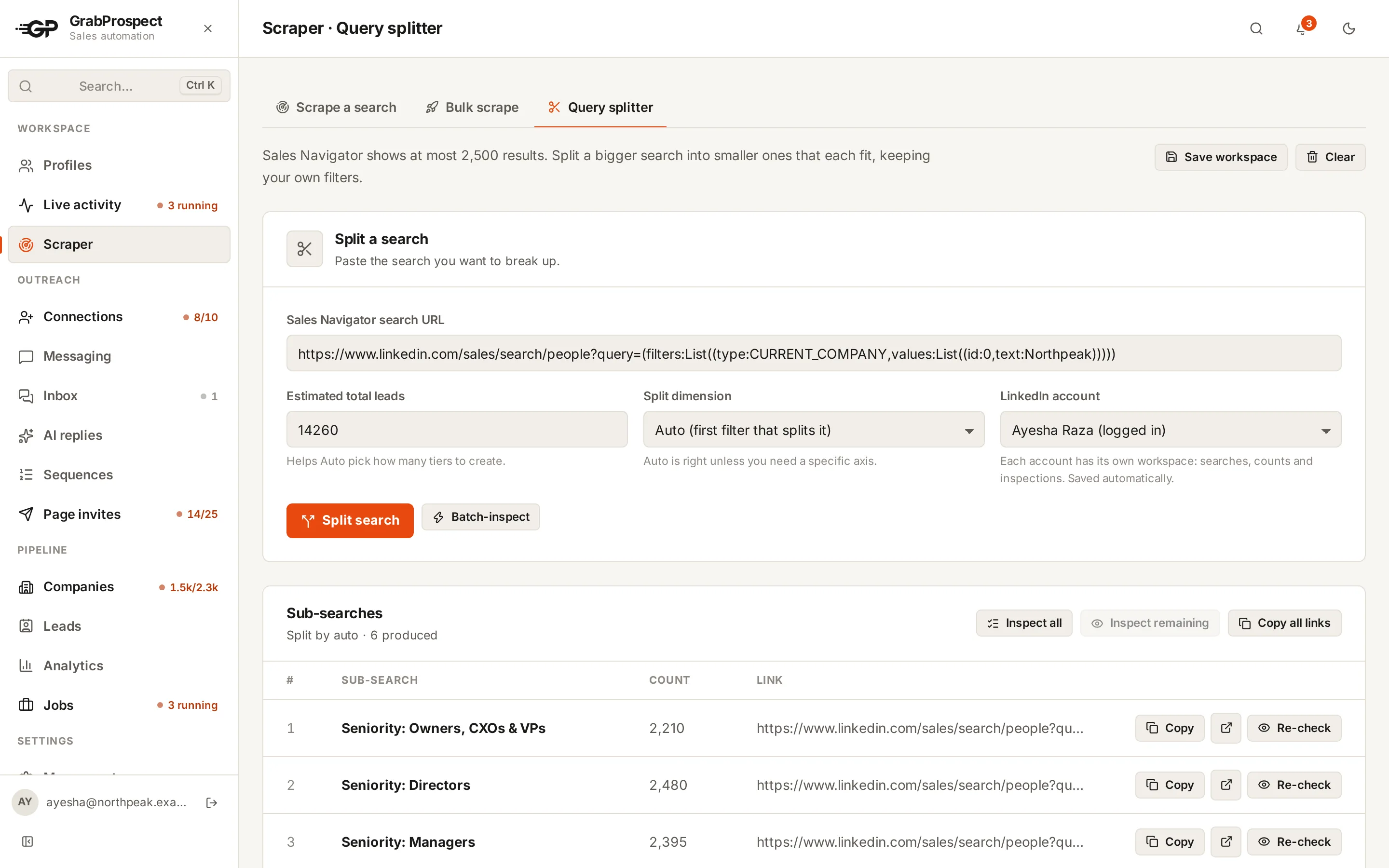
GrabProspect's query splitter works this way. It keeps your own filters, splits on seniority, job title, function and other filters, checks every piece against Sales Navigator's live count, and shows the coverage so nothing is assumed. Click Copy all links and paste them into the Bulk scrape tab's Add in bulk: each piece becomes a scrape, shared out across the LinkedIn accounts you choose, and the Sales Navigator scraper saves each lead once.
You can check whether a search needs splitting with the free Sales Navigator URL checker, which reads a search link and lists its filters.
How long does exporting 10,000+ leads take?
Reading Sales Navigator at a human pace is slower than it looks: a page of 25 leads takes a few seconds to load, and a careful tool waits between pages. As a rough guide:
| Leads | Pieces (typical) | Time at a careful pace |
|---|---|---|
| 2,500 | 1 | 15 to 30 minutes |
| 10,000 | 4 to 6 | 1 to 2 hours |
| 50,000 | 20 to 30 | 6 to 10 hours, best spread over days |
Spreading big exports over several days keeps your account's activity looking normal. GrabProspect spreads scrapes across the hours you choose for each LinkedIn account.
Mistakes to avoid
- Splitting on Keywords. Keyword matches overlap heavily; you'll export the same people many times and still miss some.
- Trusting the headline number blindly. "180,000 results" for a broad search often includes people far outside your target. Tighten the search first, then split.
- Exporting 50,000 leads in one afternoon. Big bursts of page views look unusual. Spread them out.
- Not removing duplicates. If you split on overlapping filters, de-duplicate by profile URL before you start outreach.
Frequently asked questions
Can Sales Navigator show more than 2,500 results?
No. Every Sales Navigator search, on every plan (Core, Advanced and Advanced Plus), stops at 100 pages of 25 results. The only way to reach more people is to split the search into smaller searches.
Is the 2,500 limit per search or per day?
Per search. You can run as many searches as you like, and each one shows up to 2,500 results. That's why splitting works.
Does the 2,500 limit apply to account (company) searches too?
Yes. Account searches have the same 100-page cap, so the same splitting approach works, usually on company headcount, industry and geography.
Which filter is best for splitting a Sales Navigator search?
Seniority level and company headcount, because every profile has exactly one value for each, so pieces neither overlap nor leave gaps. Use function or geography to split any piece that is still too big.
Do I need Sales Navigator Advanced to export more than 2,500?
No. The cap is the same on every plan. Splitting works on Core.
Will splitting a search get my account restricted?
Running more searches is normal Sales Navigator use. What matters is pace: viewing hundreds of pages in a short burst looks unusual. Spread large exports over hours or days, which GrabProspect does automatically.
Written by Mehran Iqbal, Co-Founder & CEO of GrabProspect, who builds LinkedIn outreach software and runs outreach with it. Facts checked on 2026-10-13. Spotted something out of date? Email contact@grabprospect.com.