Every Sales Navigator Filter Explained (and Which Ones Actually Matter)
A practical tour of Sales Navigator's lead and account filters, the Spotlights that show timing, and how to stack them into a search that finds buyers.
By Mehran Iqbal, Co-Founder & CEO of GrabProspect5 min read
Short answer
Sales Navigator's filters fall into four groups: who the person is (job title, seniority, function, years in role), where they work (company, headcount, industry, headquarters), where they are (geography), and timing signals called Spotlights (changed jobs in the past 90 days, posted on LinkedIn in the past 30 days). The strongest searches combine a job title filter, seniority, company headcount and geography, then add one Spotlight for timing.
Sales Navigator has more than 50 filters, and most searches only need five of them. This guide goes through the filters by what they tell you, which ones are worth using, and how to combine them.
Filter names occasionally change as LinkedIn updates Sales Navigator; the ideas below stay the same.
Role filters: who the person is
| Filter | What it matches | When to use it |
|---|---|---|
| Current job title | Their current title; accepts Boolean | Almost always. The most precise way to target a role |
| Seniority level | Entry, Senior, Manager, Director, VP, CXO, Owner/Partner and others | To separate decision makers from their teams |
| Function | Department: Marketing, Sales, Engineering, HR... | When titles vary a lot ("Growth", "Demand Gen", "Marketing") |
| Years in current position | Under 1 year, 1-2, 3-5... | New in role = reviewing vendors and building their team |
| Years in current company | Same bands, for the employer | Long tenure = knows the internal politics, hard to move |
| Years of experience | Total career length | Rough proxy for seniority when titles are vague |
| Past job title | Previous titles | Finding people who used to do the job you sell to |
Current job title plus Seniority is the core of most good searches. Title says what they do; seniority says whether they can buy.
Company filters: where they work
| Filter | What it matches | When to use it |
|---|---|---|
| Current company | Named companies; accepts Boolean | Account-based lists: specific target companies |
| Company headcount | 1-10, 11-50, 51-200, 201-500... | Nearly always. Your pricing usually fits a company size |
| Company type | Public, privately held, non-profit, self-employed... | Leaving out freelancers and the self-employed |
| Industry | LinkedIn's industry list | When your product fits specific industries |
| Company headquarters location | Where the company is based | Selling to companies in a country, wherever their staff live |
| Past company | Former employers | Alumni of a customer: they already know you |
Personal filters: where they are
| Filter | What it matches |
|---|---|
| Geography | Where the person lives (region, country, city) |
| Postal code | Radius around a postal code, in some countries |
| Profile language | The language of their profile |
| First name / Last name | Specific people |
| Groups | LinkedIn groups they belong to |
| School | Where they studied |
Geography vs Company headquarters: a German company's sales team may live in Spain. Pick Geography if language and time zone matter for your outreach, and HQ location if the buying decision is made where the company is based.
Spotlights: timing signals
Spotlights are Sales Navigator's best feature, because they tell you when to reach out, not just who.
| Spotlight | Why it matters |
|---|---|
| Changed jobs in past 90 days | New leaders review tools and build teams in their first months |
| Posted on LinkedIn in past 30 days | Active users read and answer messages |
| Mentioned in the news | A reason to write that isn't about you |
| Following your company | Already interested |
| Viewed your profile recently | Warm: they looked you up |
| Connections of / TeamLink | Someone you or your team knows can introduce you |
Add one Spotlight at a time. Each one cuts the list a lot, and two together can leave too few people.
Workflow filters
These filter by your own Sales Navigator activity: people in a lead list, people you've contacted (to exclude), saved leads, and CRM matches on Advanced plans. The most useful is excluding people you've already messaged, so a new search doesn't reach someone twice. See saved searches, alerts and lead lists for a weekly workflow.
Account (company) search filters
Account searches find companies instead of people. The key filters:
- Annual revenue and Company headcount
- Headcount growth: companies growing fast are hiring and buying
- Department headcount and department headcount growth: for example, companies whose sales team grew 20% in a year
- Industry, Headquarters location, Number of followers
- Job opportunities: companies with open roles
- Technologies used, where available
A strong pattern (account-based prospecting): build an account search for companies that fit, save them as an account list, then run a lead search filtered to that account list with your job title and seniority filters. GrabProspect scrapes both kinds: company searches export with company fields, lead searches with people fields.
Do this on autopilot with GrabProspect
Scrape Sales Navigator (even searches over 2,500), send personal invites, follow up until people reply and answer every reply from one inbox. Try it free for 7 days with your own LinkedIn account.
Four searches that work
New marketing leaders at mid-size SaaS companies
- Current job title:
("head of marketing" OR "marketing director" OR CMO OR "VP marketing") - Company headcount: 51-200, 201-500
- Industry: Software Development
- Spotlight: Changed jobs in past 90 days
Active agency founders in the UK
- Current job title:
(founder OR co-founder OR owner OR "managing director") - Company headcount: 2-10, 11-50
- Industry: Advertising Services, Marketing Services
- Geography: United Kingdom
- Spotlight: Posted on LinkedIn in past 30 days
Recruiting leaders at fast-growing companies
- Current job title:
("head of talent" OR "talent acquisition manager" OR "head of recruiting") - Account list from an account search with headcount growth over 20%
- Seniority: Manager, Director
Warm introductions
- Your usual title and company filters
- Spotlight: TeamLink connections (or Connections of: a colleague)
How to stack filters
Add filters in this order and watch the count after each:
- Job title (Boolean) or Function
- Seniority
- Geography
- Company headcount
- Industry (only if it really matters)
- One Spotlight for timing
Stop when the list is specific enough to write one message that fits everyone on it. If the count is still over 2,500, split the search rather than adding filters you don't need.
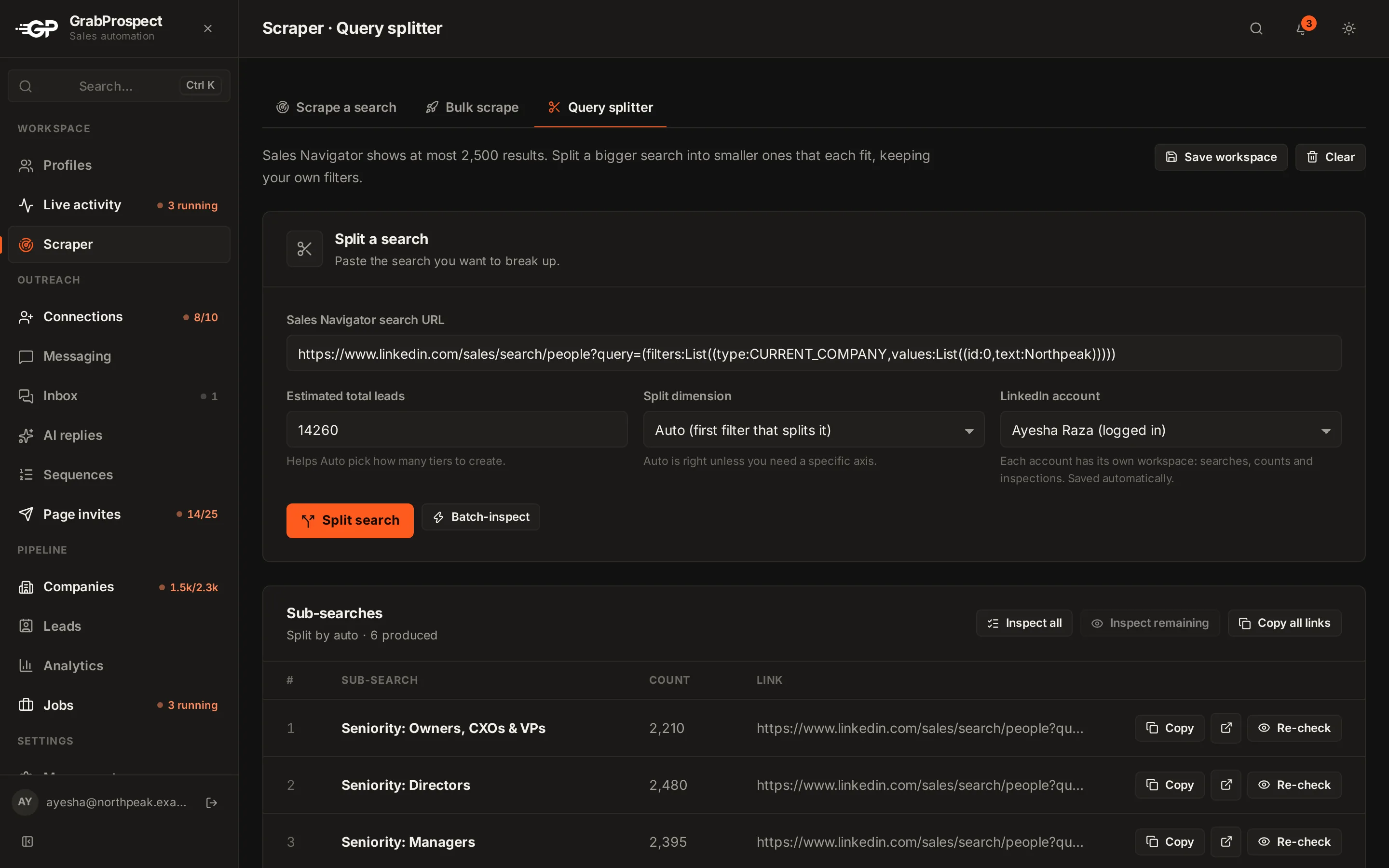
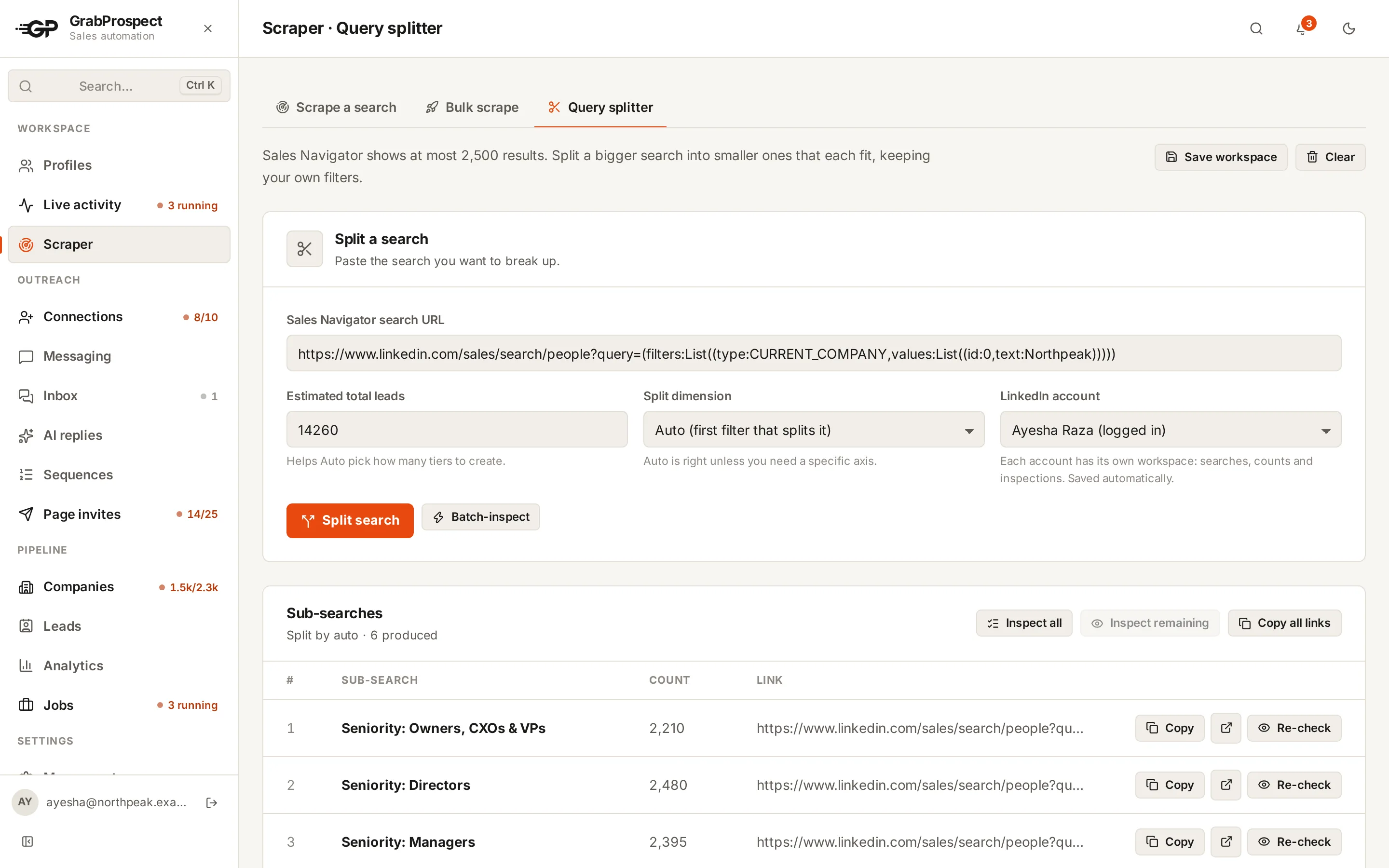
Paste any search into the free Sales Navigator link checker to see its filters in plain words, and use the query splitter when it's over 2,500.
Frequently asked questions
Which Sales Navigator filters are most important?
Current job title, seniority level, company headcount and geography. Those four describe who someone is, whether they can buy, and whether they fit your market. Add a Spotlight for timing.
What is the difference between Function and Current job title?
Function is LinkedIn's department label (Marketing, Sales...), set from the profile. Current job title is the person's own title text. Title is more precise; function catches people with unusual titles.
What does "Changed jobs in past 90 days" do?
It shows people who started a new role in the last three months. New leaders often review tools and build their teams early, so they're more likely to reply.
Are Sales Navigator filters available on regular LinkedIn?
Only a few. Regular LinkedIn search has basic filters (location, current company, industry); seniority, headcount, Spotlights and most others are Sales Navigator only.
Written by Mehran Iqbal, Co-Founder & CEO of GrabProspect, who builds LinkedIn outreach software and runs outreach with it. Facts checked on 2026-10-13. Spotted something out of date? Email contact@grabprospect.com.