How to Export Sales Navigator Leads to CSV (Every Way, Compared)
Sales Navigator has no export button. Here are the ways to get your leads into a CSV or spreadsheet, what each gives you, and which to pick.
By Mehran Iqbal, Co-Founder & CEO of GrabProspect6 min read
Short answer
Sales Navigator has no built-in "export to CSV" button. Your options are copying leads by hand, syncing to a CRM (Advanced Plus only, and only for leads you save), or using a scraping tool that reads your search and writes a CSV. A scraper is the only practical way for hundreds or thousands of leads; pick one that runs at a human pace and handles searches over 2,500.
You built the perfect Sales Navigator search: the right titles, company sizes and regions. Now you want it in a spreadsheet, to sort, share, upload to a CRM or use for outreach. And there is no export button.
That's deliberate: LinkedIn keeps its member data inside its own products. This guide covers every way people get Sales Navigator leads into a CSV, what each one actually gives you, and the trade-offs.
Option 1: Copy leads by hand
Open each lead, copy the name, title, company and profile link into a spreadsheet.
- Cost: free.
- Speed: about 30 seconds a lead, so 2 hours for 250 leads.
- Good for: a shortlist of 20 to 50 high-value accounts where you'll research each person anyway.
- Downside: slow, error-prone, and impossible at a few hundred leads or more.
Option 2: CRM sync (Advanced Plus)
Sales Navigator Advanced Plus can sync with Salesforce, HubSpot or Microsoft Dynamics. Leads and accounts you save in Sales Navigator are linked to CRM records, and you can then export from your CRM.
- Cost: Advanced Plus is sold by quote, typically well above the Core and Advanced plans.
- Good for: large sales teams that already live in Salesforce or Dynamics.
- Downside: it syncs saved leads, not whole searches. You still have to save each lead first, and lead lists are capped in size. It is not a bulk export.
Option 3: A scraping tool
A scraper opens your search the way you would, reads each page of results, and writes what it sees into a CSV. This is how most people export Sales Navigator searches.
There are three kinds:
| Kind | Examples | How it runs | Best for |
|---|---|---|---|
| Export-only Chrome extensions | Evaboot | In your browser, on your Sales Navigator tab | Clean lists with verified emails, sent from another tool |
| Automation platforms | PhantomBuster | In the cloud, billed by execution time | People already automating many websites |
| Outreach tools with a built-in scraper | GrabProspect, Linked Helper | Cloud (GrabProspect) or desktop (Linked Helper) | Scraping and then reaching the same people on LinkedIn |
See the best Sales Navigator scrapers compared for prices and details.
What a good export contains
Sales Navigator search results show a lot of useful information per lead. A complete export should keep it. GrabProspect's lead CSV has these 16 columns, matching the original Sales Navigator scraper our users came from:
| Column | Example |
|---|---|
| First Name, Last Name, Full Name | Sara, Malik, Sara Malik |
| Title | Head of Marketing |
| Company | Acme Analytics |
| Profile Link | Sales Navigator lead link |
| LinkedIn Profile Link | The person's public /in/ profile |
| isPremium | Yes or No |
| Company Profile URL, Company ID | The company's Sales Navigator page and its id |
| Location | Lahore, Punjab, Pakistan |
| Time in Company, Time in Role | 3 years 2 months, 1 year 4 months |
| Connection Degree | 2nd |
| Scraped At | When it was saved |
| Account Used | Which of your LinkedIn accounts ran the search |
For a company (account) search, the useful fields are different: company name and id, industry, size band, employees on LinkedIn, description, highlights, and links to the Sales Navigator and public company pages.
Step by step: export a search with GrabProspect
- Build your search in Sales Navigator and copy the URL from the address bar. Long
#query=links work too. - Check the size. Over 2,500 results? Run it through the query splitter first, or see how to export more than 2,500 leads.
- Paste the URL into the Scraper (or add many at once on the Bulk scrape tab, each with an optional name), and pick which LinkedIn account runs it.
- Watch it work. Each scrape shows live progress: which page it's on, how many leads it has saved, and what it's waiting for.
- Download the CSV from the scrape's row. To combine several scrapes, select them and download a ZIP (one CSV each) or one merged file with a "Found In Search" column.
Not sure what a search link contains? Paste it into the free Sales Navigator link checker to see its filters before you scrape it.
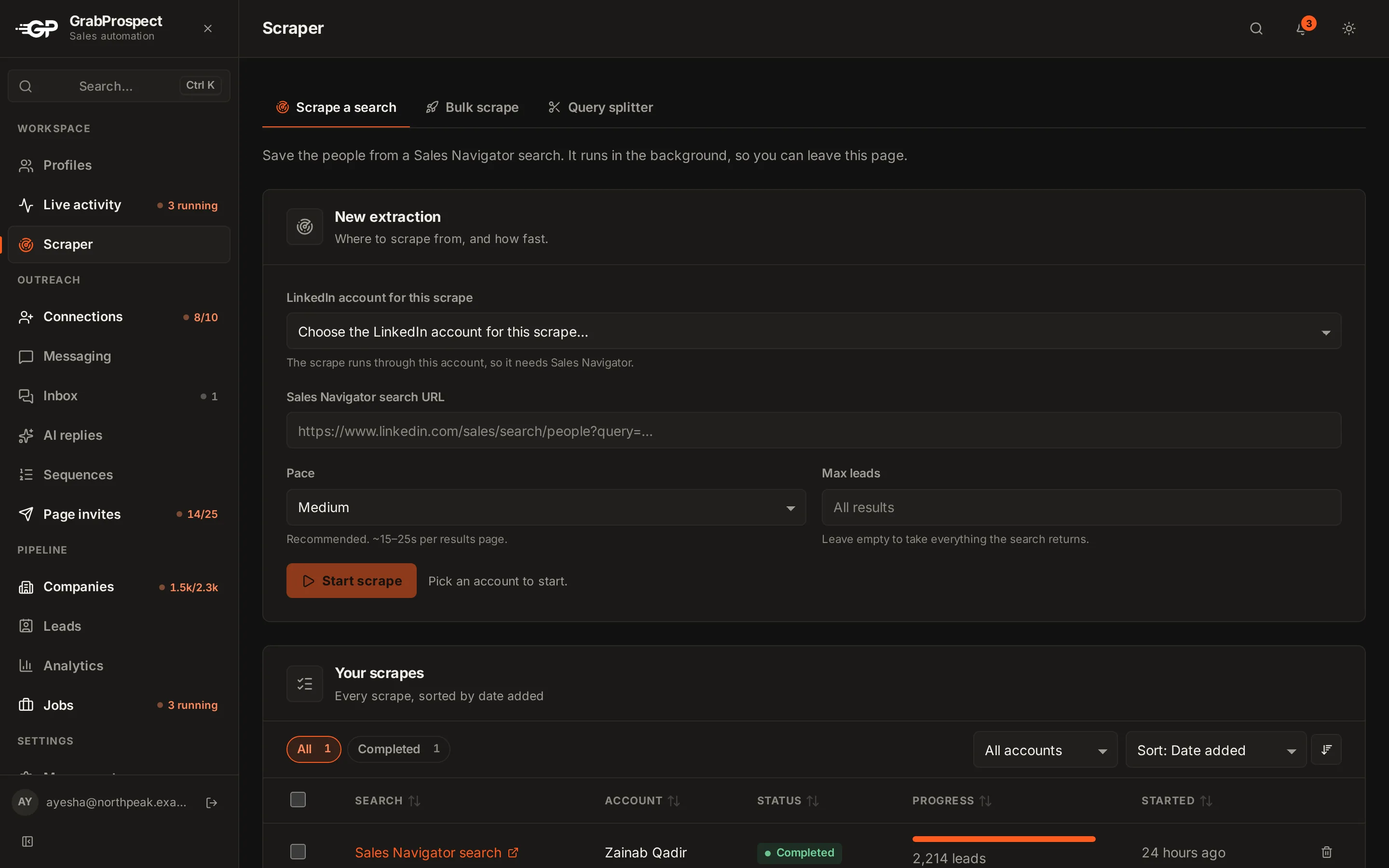
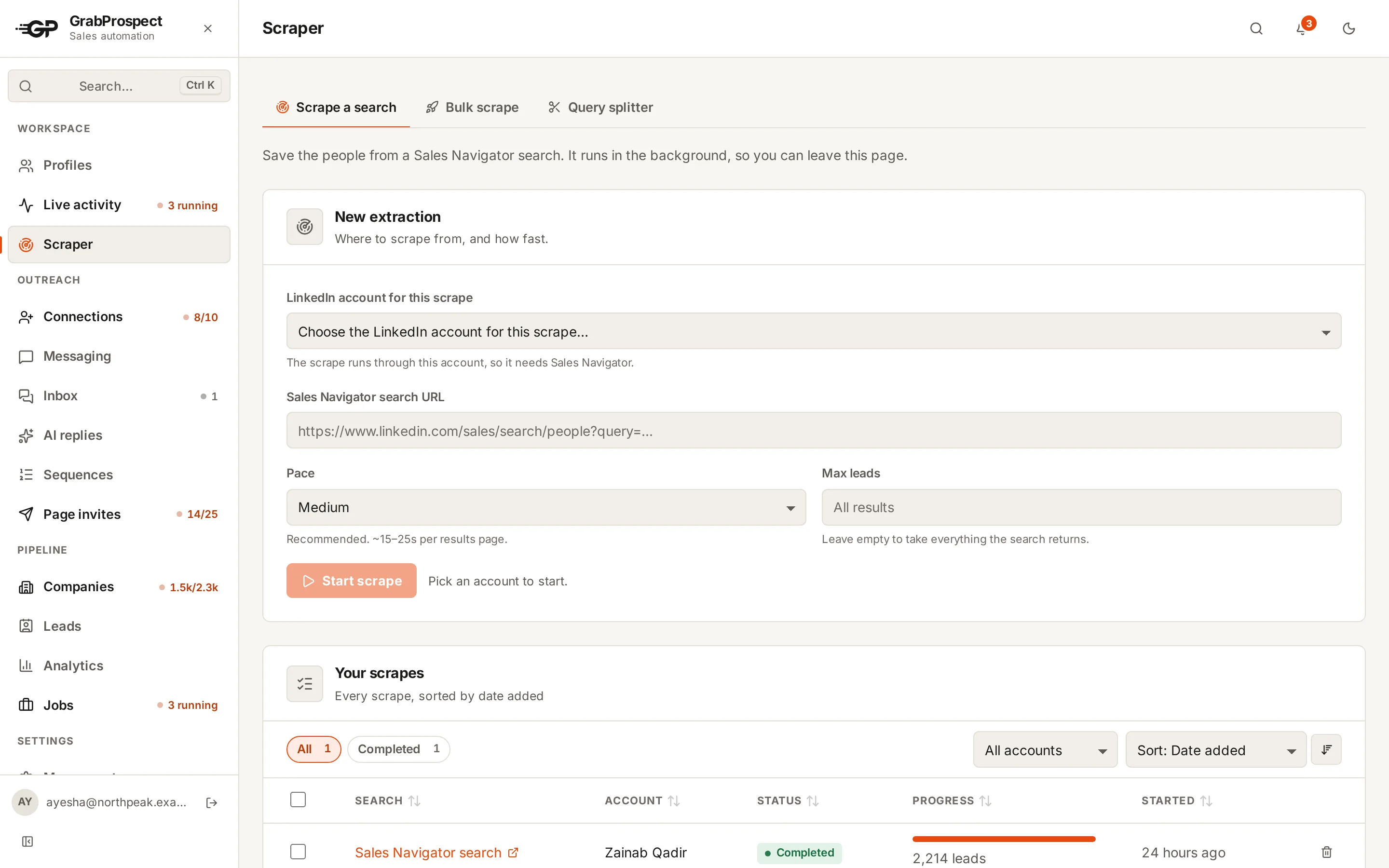
GrabProspect detects company searches by itself and exports them with the company columns.
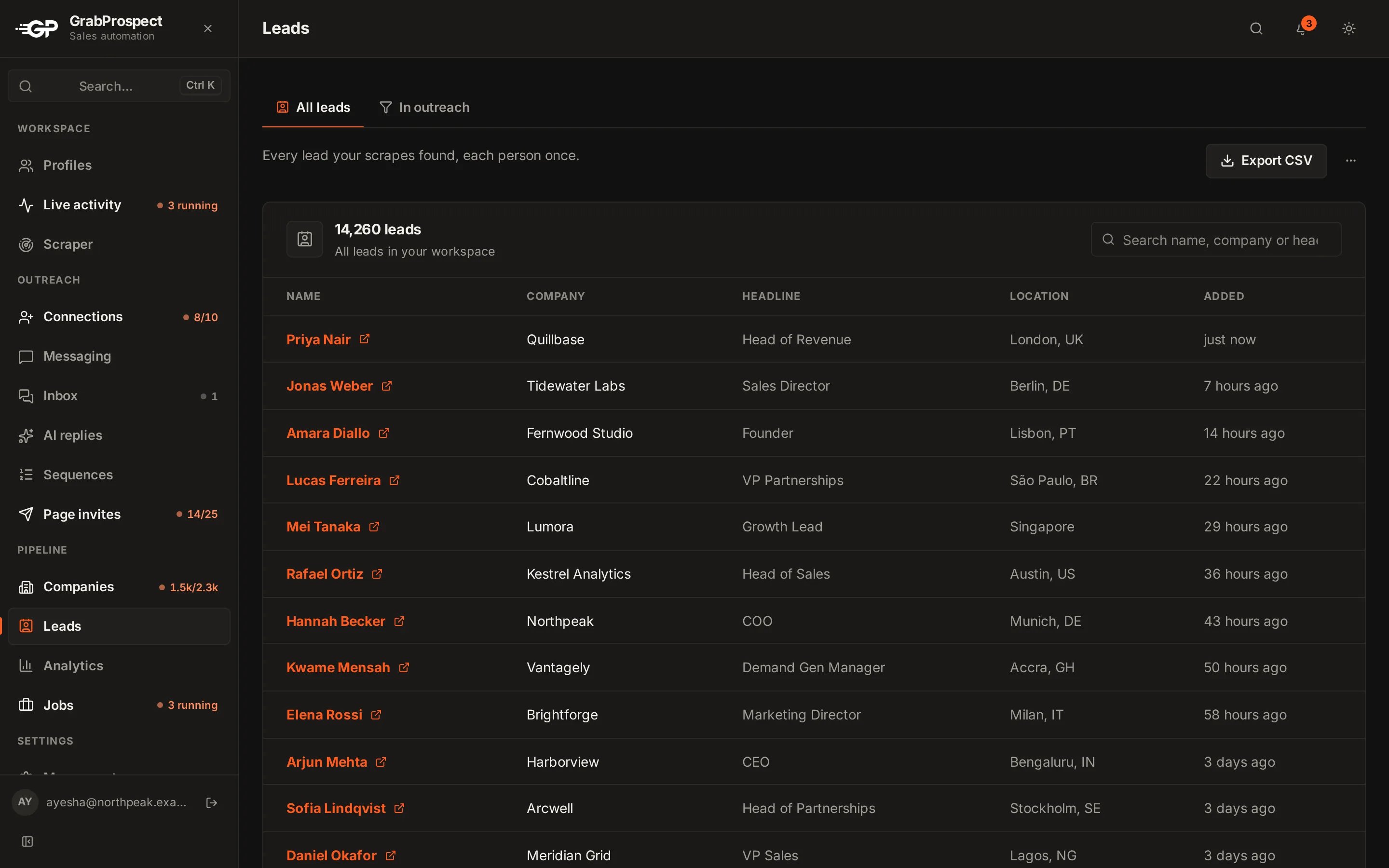
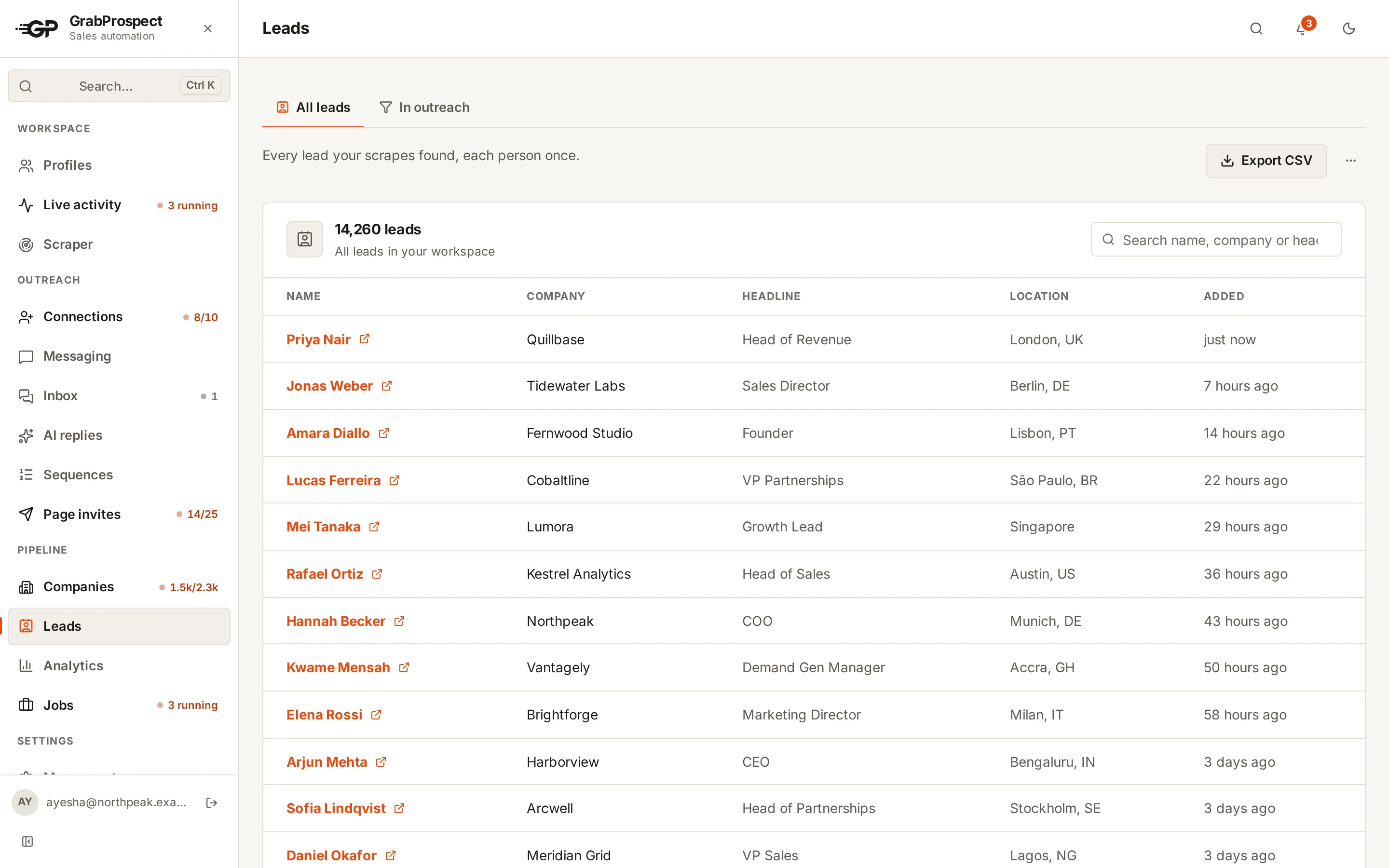
Do this on autopilot with GrabProspect
Scrape Sales Navigator (even searches over 2,500), send personal invites, follow up until people reply and answer every reply from one inbox. Try it free for 7 days with your own LinkedIn account.
Is exporting Sales Navigator data allowed?
Be clear-eyed about this. LinkedIn's User Agreement prohibits using software to scrape or copy data from LinkedIn, and to automate activity. Every scraping tool, including GrabProspect, works against that rule, and LinkedIn can restrict accounts it believes are automated.
What lowers the risk is behaving like a person: reading pages at a normal pace, spreading big exports over time, and not running thousands of page views in a burst. Read how to use LinkedIn automation without getting restricted before you export at scale.
Data protection rules also apply to what you do with the data. If you contact people in the EU or UK, GDPR applies (see LinkedIn outreach and GDPR): have a legitimate reason relevant to their job, tell them where you got their details if they ask, and stop when they say no.
Common problems and fixes
- The export stops at 2,500. That's Sales Navigator's own limit per search. Split the search.
- Some rows are missing titles or companies. Those people left the field empty on their profile; nothing is lost.
- A page takes minutes to load. Sales Navigator is sometimes slow. A good scraper waits and tries the page again rather than skipping it. GrabProspect tries each page 3 times with longer waits, and a failed scrape can be retried from the page where it stopped.
- Duplicates across several exports. Store leads by profile URL. GrabProspect keeps each lead once in your workspace however many searches find it, while each scrape's own CSV still lists everyone it found.
Frequently asked questions
Does Sales Navigator have an export to CSV button?
No. Sales Navigator has no native export of search results. Advanced Plus can sync saved leads to a CRM, but bulk export of a search needs a third-party tool.
Can I export Sales Navigator leads for free?
Only by copying them by hand. Every tool that exports in bulk is paid, though most have free trials. GrabProspect's trial includes 500 scraped leads.
How many leads can I export from one Sales Navigator search?
Up to 2,500, because that's all Sales Navigator shows for one search. Split larger searches into smaller ones to export more.
Do Sales Navigator exports include email addresses?
No. Sales Navigator shows LinkedIn profile data, not email addresses. Tools that add emails look them up separately (and charge per email found). GrabProspect exports the LinkedIn data and lets you reach people on LinkedIn itself.
Can I export a Sales Navigator lead list, not just a search?
A saved lead list is just leads you saved one by one. It's usually easier to export the search that found them.
Written by Mehran Iqbal, Co-Founder & CEO of GrabProspect, who builds LinkedIn outreach software and runs outreach with it. Facts checked on 2026-10-13. Spotted something out of date? Email contact@grabprospect.com.