Sales Navigator Saved Searches, Alerts and Lead Lists: A Practical Workflow
How to use Sales Navigator's saved searches, alerts, lead lists and account lists together, so new prospects find you every week instead of you searching from scratch.
By Mehran Iqbal, Co-Founder & CEO of GrabProspect2 min read
Short answer
Save every search that describes a market you sell to, turn on alerts so Sales Navigator tells you when new people match, and use lead and account lists to track the people and companies you're working. Each week, review new matches, add the right ones to a list, and run outreach from that list. Saved searches also give you stable links to scrape.
Most people use Sales Navigator like a search engine: type, browse, close. The real value is in what it does between your visits: watching your markets and telling you who's new. That runs on saved searches, alerts and lists.
Saved searches
A saved search stores your filters so you can rerun it in one click. Save one search per market or persona, for example:
- Heads of marketing, B2B software, 50 to 500 employees, UK
- Founders of agencies, 2 to 50 employees, United States, posted in past 30 days
- HR directors, healthcare, Germany
Name each one clearly; you'll have a dozen soon.
Alerts on saved searches
Turn on alerts for a saved search and Sales Navigator tells you when new people match it: someone changed jobs into the role, a company grew into your size band. These are often the best prospects of the week, because something just changed for them.
Lead lists and account lists
| List | Holds | Use it for |
|---|---|---|
| Lead list | People | Tracking the people you're contacting in a campaign |
| Account list | Companies | Target companies for account-based prospecting |
Lead searches can be filtered to an account list, which is how you find the right people at your target companies.
A weekly workflow
| When | What |
|---|---|
| Monday | Review new matches from each saved search's alerts |
| Monday | Add the right people to this week's lead list |
| Through the week | Run invites and follow-ups from the list |
| Friday | Move people who replied to the right stage; drop poor fits |
| Monthly | Review saved searches: still the right markets? |
Do this on autopilot with GrabProspect
Scrape Sales Navigator (even searches over 2,500), send personal invites, follow up until people reply and answer every reply from one inbox. Try it free for 7 days with your own LinkedIn account.
From saved search to outreach in GrabProspect
A saved search's link is a stable starting point for scraping:
- Open the saved search and copy its URL. Check what it contains with the Sales Navigator link checker.
- Paste it into GrabProspect's Sales Navigator scraper, or add several at once on the Bulk scrape tab, each with a name like "UK marketing heads".
- Over 2,500 results? Use the query splitter.
- Run connection invites and a follow-up sequence from the scraped list.
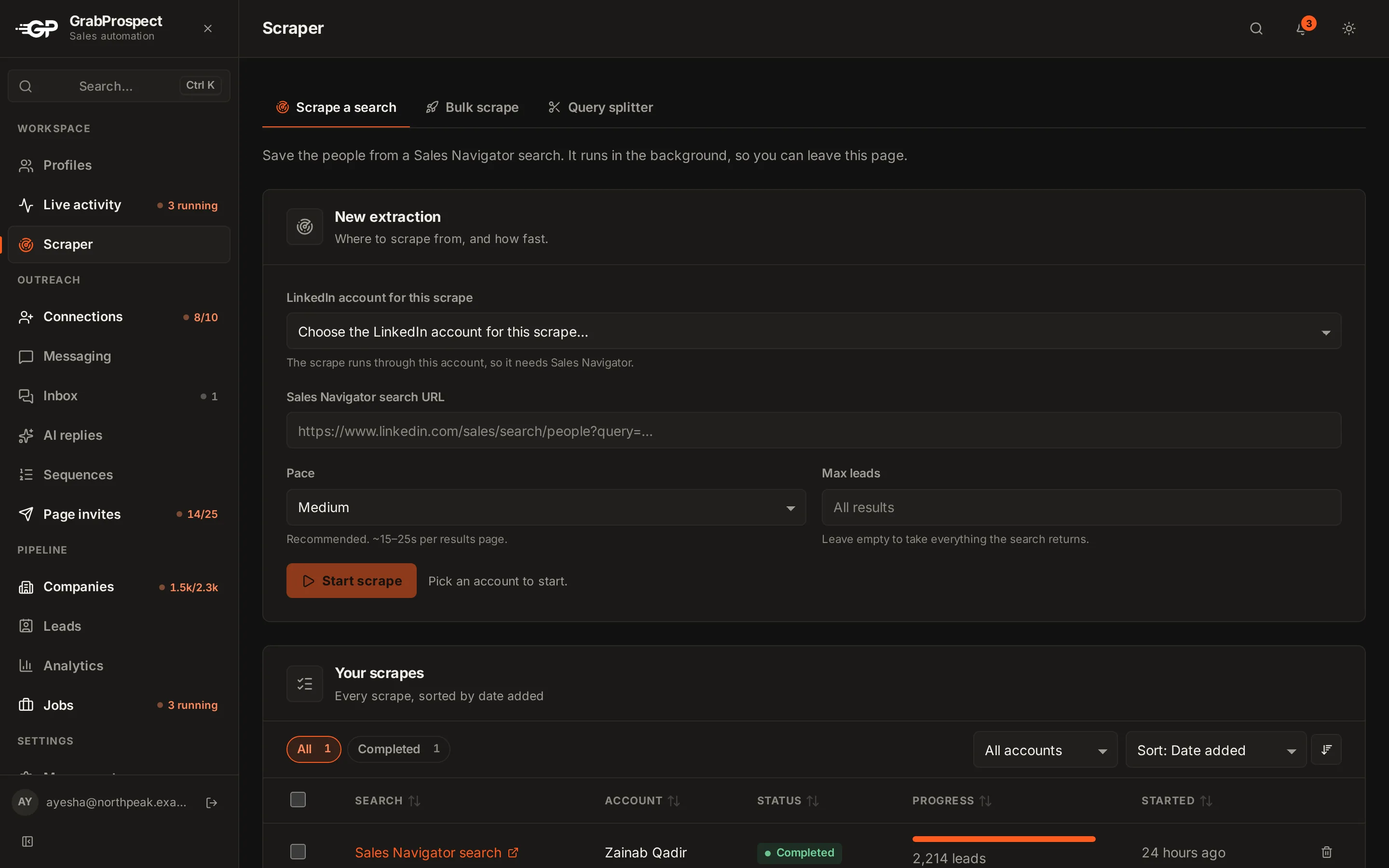
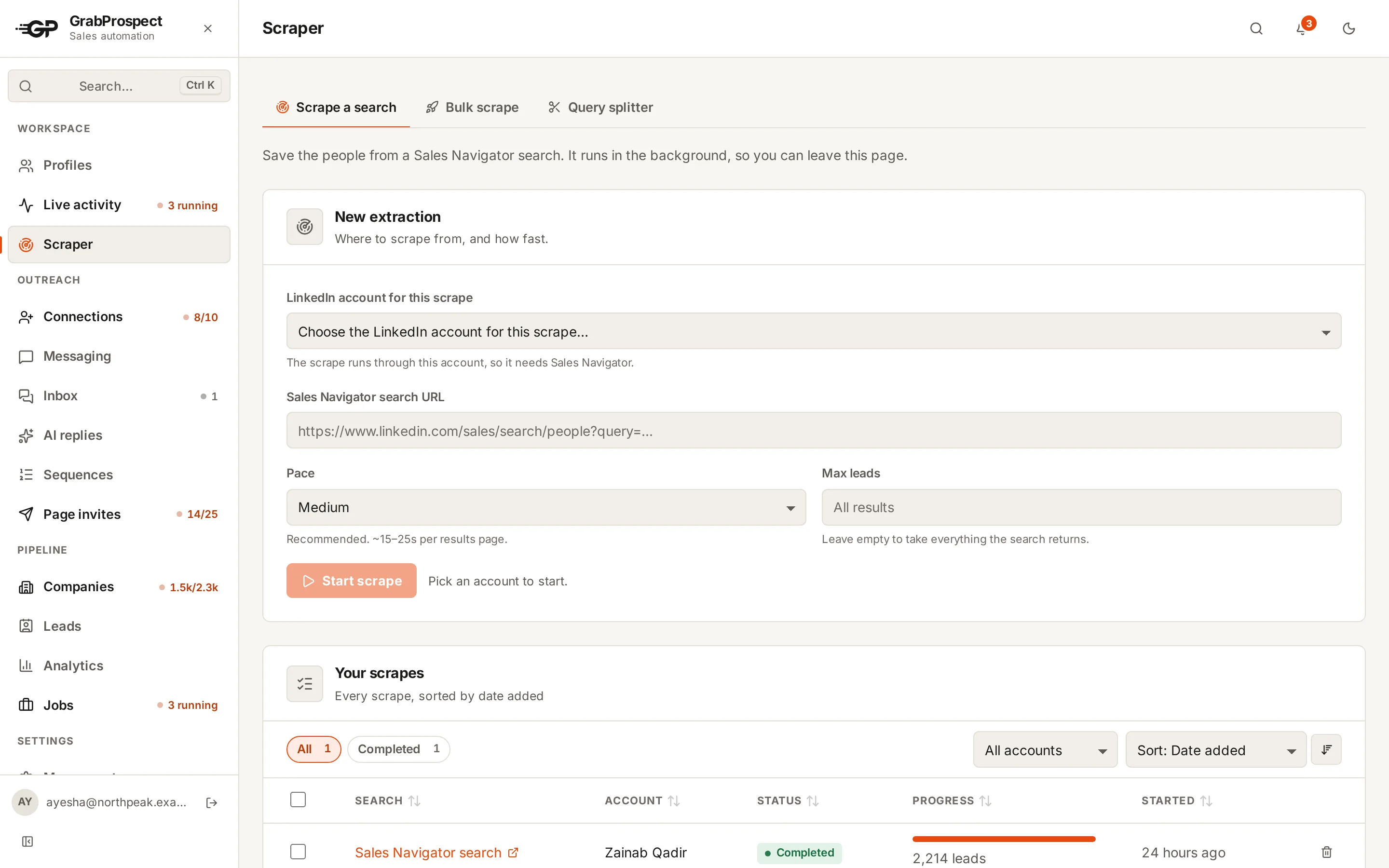
Re-scrape the same saved search each month: leads already in your workspace aren't duplicated, so you only add who's new.
Frequently asked questions
What is a saved search in Sales Navigator?
A stored set of filters you can rerun in one click, with optional alerts when new people match.
How do Sales Navigator search alerts work?
When you turn on alerts for a saved search, Sales Navigator notifies you of new results, such as people who moved into a matching role.
What's the difference between a lead list and an account list?
A lead list holds people; an account list holds companies. Lead searches can be filtered to an account list to find people at your target companies.
Can I scrape a saved search?
Yes. Copy the saved search's URL and paste it into a scraper. Re-scraping later only adds people who are new.
Written by Mehran Iqbal, Co-Founder & CEO of GrabProspect, who builds LinkedIn outreach software and runs outreach with it. Facts checked on 2026-10-14. Spotted something out of date? Email contact@grabprospect.com.