How to Use LinkedIn Automation Without Getting Restricted
An honest guide to LinkedIn automation risk, what LinkedIn actually watches for, safe daily numbers, and a checklist for running outreach that looks and behaves human.
By Mehran Iqbal, Co-Founder & CEO of GrabProspect5 min read
Short answer
LinkedIn's User Agreement prohibits automation, so no tool can promise an account will never be restricted. What keeps the risk low is behaving like a careful person: a steady pace with irregular gaps, daily and weekly caps under LinkedIn's limits (around 15 to 25 invites a day), personal notes to well-targeted people, a high acceptance rate, few pending invites, and stopping immediately when LinkedIn warns you.
Every LinkedIn automation tool says it's "safe". The honest version: LinkedIn doesn't allow automation, and any tool, including ours, carries some risk. What you can control is how much.
This guide explains what LinkedIn says, what actually triggers restrictions, and the habits that keep accounts healthy for years.
What LinkedIn's rules say
LinkedIn's User Agreement says members must not use bots or other automated methods to access the service, add contacts, send messages, or scrape data, and its help pages list browser extensions and software that automate activity as prohibited. Accounts that LinkedIn believes are automated can be restricted, temporarily or permanently.
So the question isn't "is it allowed" (it isn't), but "how do people run outreach at a steady volume without problems". Thousands do, by keeping their activity indistinguishable from a busy, careful human.
What triggers restrictions
LinkedIn looks at patterns, not single actions. The common triggers:
| Trigger | Why it's a red flag |
|---|---|
| Bursts of activity | 80 invites or 300 profile views in an hour is not how people use LinkedIn |
| Perfectly regular timing | An action exactly every 60 seconds is a machine |
| Low acceptance rate | Many ignored invites and "I don't know this person" reports |
| Huge pending list | Thousands of unanswered invites |
| Same message to everyone | Identical text, often reported as spam |
| Activity at odd hours | Working 24 hours a day, every day |
| Many sign-ins from new places | Sessions jumping between countries and devices |
| Ignoring LinkedIn's warnings | Carrying on after "weekly limit reached" or a security check |
Safe daily numbers
There's no official table. These are conservative numbers that established accounts run for months:
| Action | Careful daily range | Notes |
|---|---|---|
| Connection invites | 15 to 25 | Stay well under ~100 a week |
| Messages to connections | 30 to 50 | Spread across the day |
| Profile views | 50 to 100 | Scraping search pages is lighter than opening profiles |
| Follow-ups | Part of the message count | Stop when someone replies |
| Company Page invites | Within the Page's monthly credits | 250 a month is typical for a Page |
New or quiet accounts: start at a third of these numbers and increase over 3 to 4 weeks.
GrabProspect's Standard limits sit inside these ranges by default: 25 invites a day and 120 a week, 40 messages a day, per LinkedIn account.
Make the pattern look human
Numbers matter less than shape. Human activity has:
- A working day. Activity in the hours you'd actually be online, on the days you work. Not 3 a.m., not every day of the year.
- Irregular gaps. Seconds to minutes between actions, never a fixed interval.
- A different start each day. People don't start at exactly 9:00:00 every morning.
- Breaks. Pauses mid-morning and at lunch.
- Variety. Reading, viewing, messaging, not 100 of one action in a row.
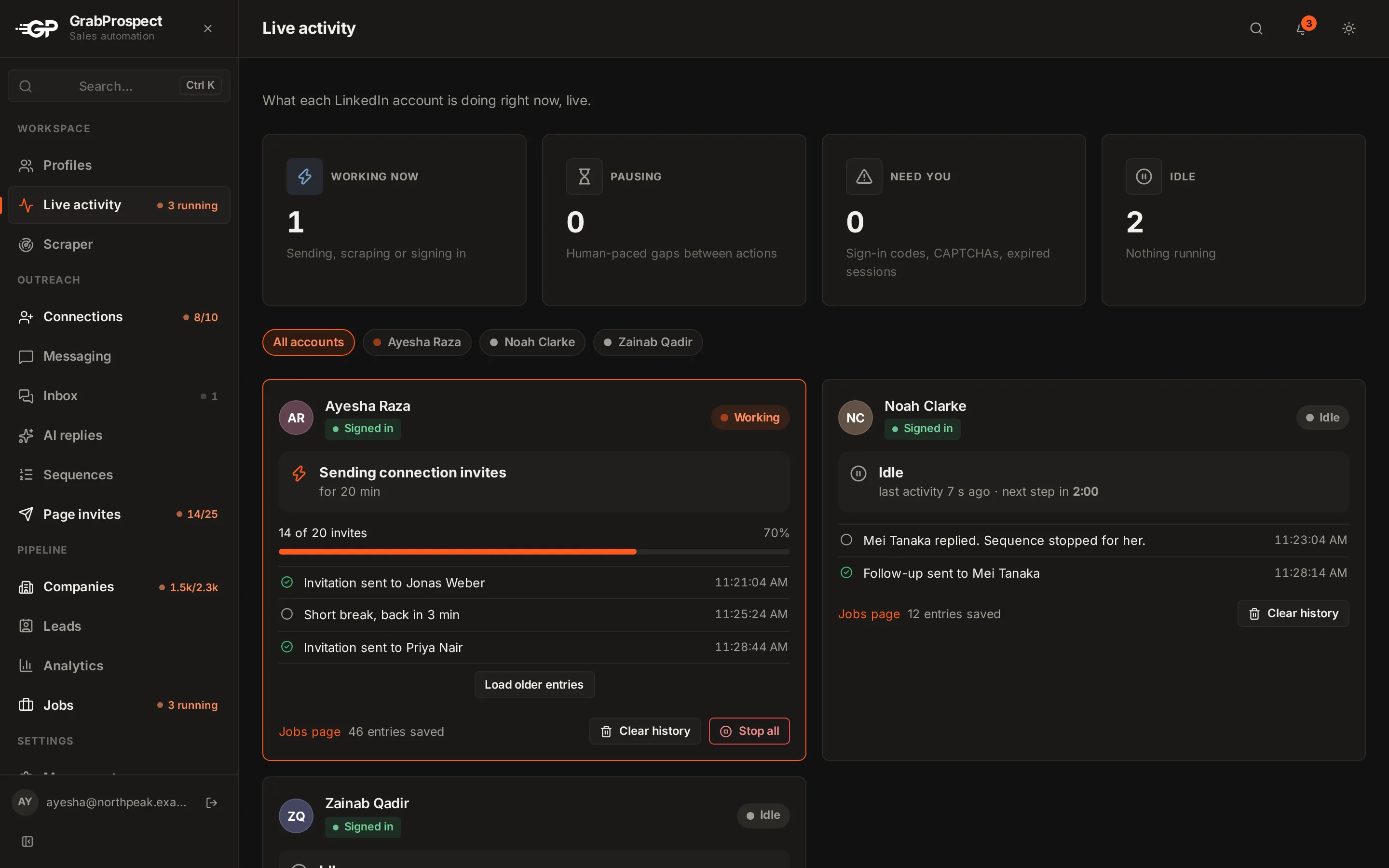
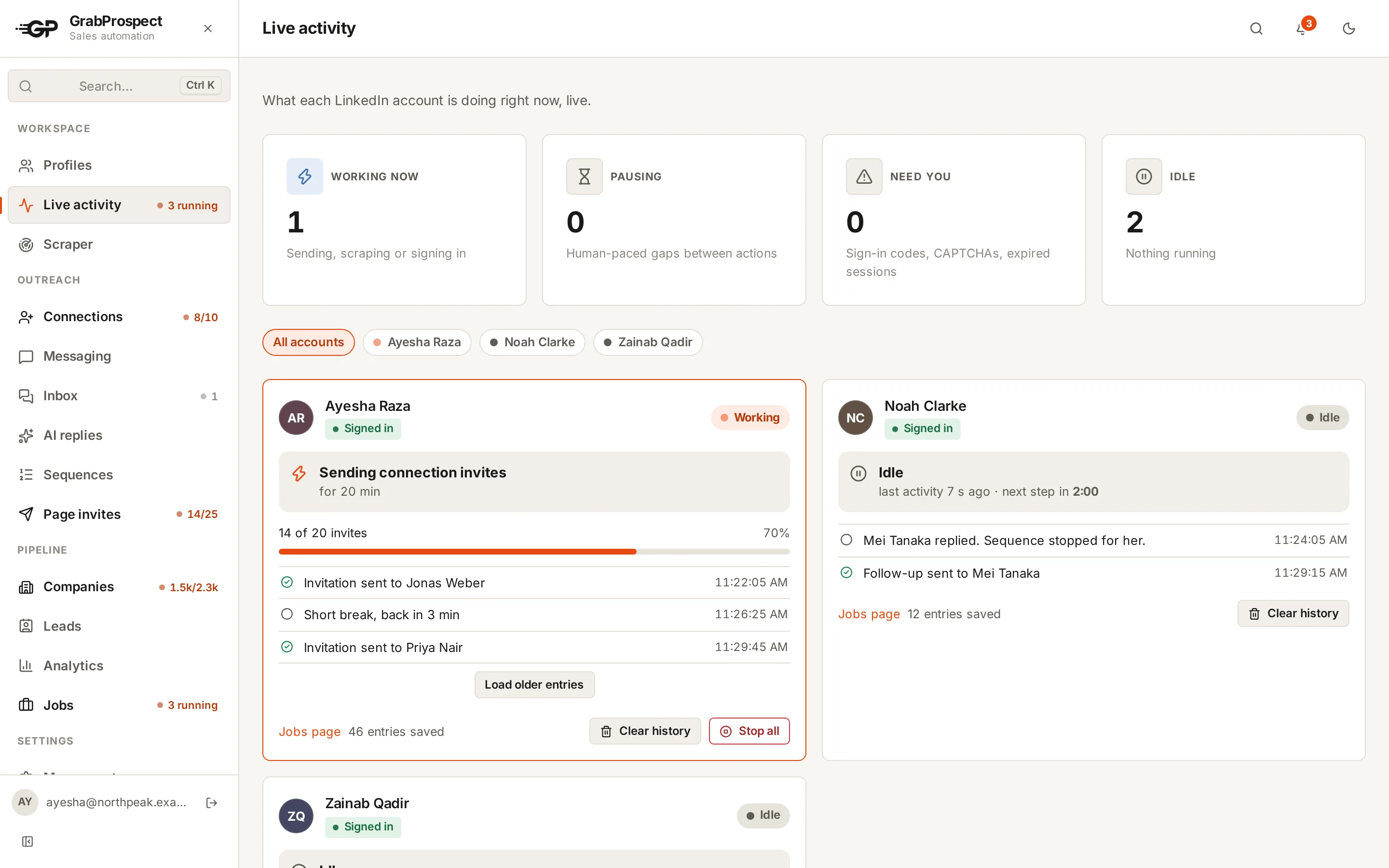
GrabProspect runs each LinkedIn account on the days and hours you choose, starts at a different minute each day, and leaves short, irregular gaps between actions, with daily and weekly caps per account.
You can watch every account's pace in the live activity view, and set each account's caps for connection invites and messages.
Do this on autopilot with GrabProspect
Scrape Sales Navigator (even searches over 2,500), send personal invites, follow up until people reply and answer every reply from one inbox. Try it free for 7 days with your own LinkedIn account.
Targeting is a safety feature
The safest outreach is outreach people want. When your invites are accepted and your messages answered, LinkedIn sees a normal, popular member.
- Invite people who'd plausibly want to know you. 2nd-degree connections, your industry, your market.
- Write a note that says why. See connection request templates.
- Follow up like a person, two or three times at most, and stop the moment they reply.
- Withdraw old invites every couple of weeks.
- Watch your acceptance rate. Under 25%? Fix the targeting before sending more.
Keep the account itself healthy
- Complete profile: photo, headline, about, experience. Empty profiles get reported.
- Real activity: post or comment now and then.
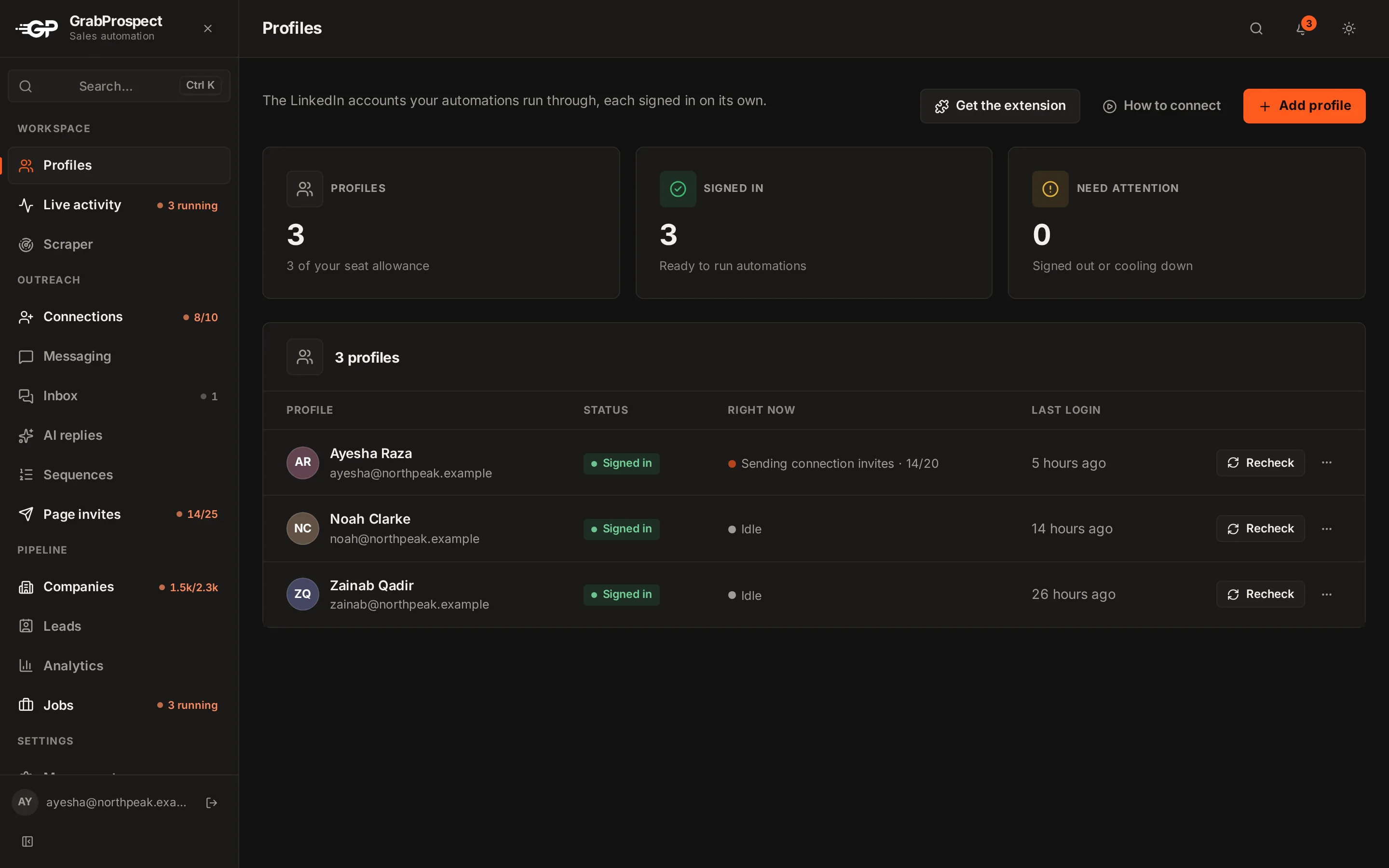
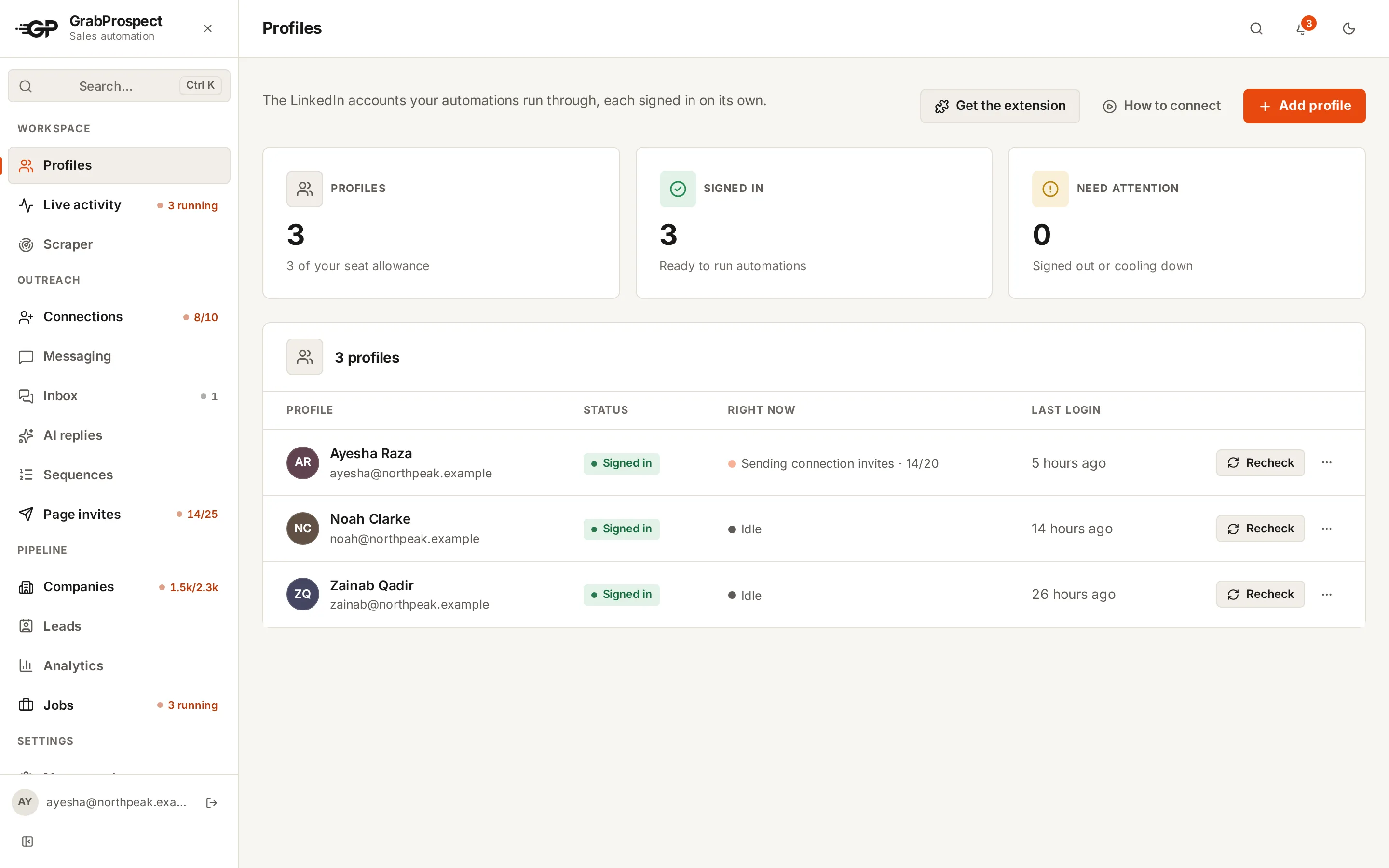
- One stable session: sign in from the same place. Cloud tools that run each account in its own consistent browser session avoid sign-ins jumping around.
- 2-step verification on LinkedIn: protects the account, and LinkedIn may ask for codes. A good tool waits for you to enter the code instead of failing.
Cloud tool, desktop app or extension?
| Type | How it runs | Safety notes |
|---|---|---|
| Browser extension | Inside your own Chrome while it's open | Uses your real browser; stops when you close it; LinkedIn can detect some extensions on its pages |
| Desktop app | On your computer or a server you keep on | Runs like a browser on your machine |
| Cloud tool | On the tool's servers, one session per account | Runs on a schedule with your computer off; quality depends on how each session is kept stable |
No type is automatically safe or unsafe. Pace, limits and targeting matter far more than where the tool runs. More in cloud vs extension vs desktop tools. See how the main tools compare.
If LinkedIn warns you
- Stop all automation on that account immediately.
- Don't keep retrying the action LinkedIn blocked.
- Complete any security check LinkedIn asks for, yourself.
- Rest the account for a few days of light, normal manual use.
- Restart at half your previous volume and build up again.
If your account is restricted, read what to do when your LinkedIn account is restricted.
The safety checklist
- 15 to 25 invites a day per account, under ~100 a week
- Activity only in working hours, with irregular gaps
- A different start time each day
- Personal notes to well-targeted people
- Acceptance rate above 30%
- Pending invites withdrawn after 2 to 3 weeks
- Follow-ups stop on reply
- Stop at the first warning
Frequently asked questions
Is LinkedIn automation legal?
Automation tools are legal software, but using them breaks LinkedIn's User Agreement, which allows LinkedIn to restrict your account. It's a contract matter between you and LinkedIn, not a criminal one. Data protection law (like GDPR) applies separately to how you use the data.
Can LinkedIn detect automation tools?
Yes, LinkedIn detects automation through behaviour patterns (bursts, regular timing, low acceptance) and can detect some browser extensions. Keeping a human pace is what matters.
How many LinkedIn connection requests per day is safe?
Around 15 to 25 per day for an established account, staying under about 100 per week. New accounts should start lower.
Which LinkedIn automation tool is safest?
None is risk-free. Choose a tool that lets you set daily and weekly caps per account, works only in your chosen hours with irregular gaps, stops on LinkedIn's warnings, and stops follow-ups when people reply.
Is a cloud tool safer than a Chrome extension?
Not automatically. Both can be used safely or recklessly. Cloud tools keep running on a schedule without your computer; extensions run in your own browser. Pace and targeting matter more.
Written by Mehran Iqbal, Co-Founder & CEO of GrabProspect, who builds LinkedIn outreach software and runs outreach with it. Facts checked on 2026-10-13. Spotted something out of date? Email contact@grabprospect.com.