AI replies: set up, instructions and sending by itself
Turn on AI replies, tell the AI about you and how to write, try it on sample replies, and choose which replies it may send by itself.
Updated
Quick answer
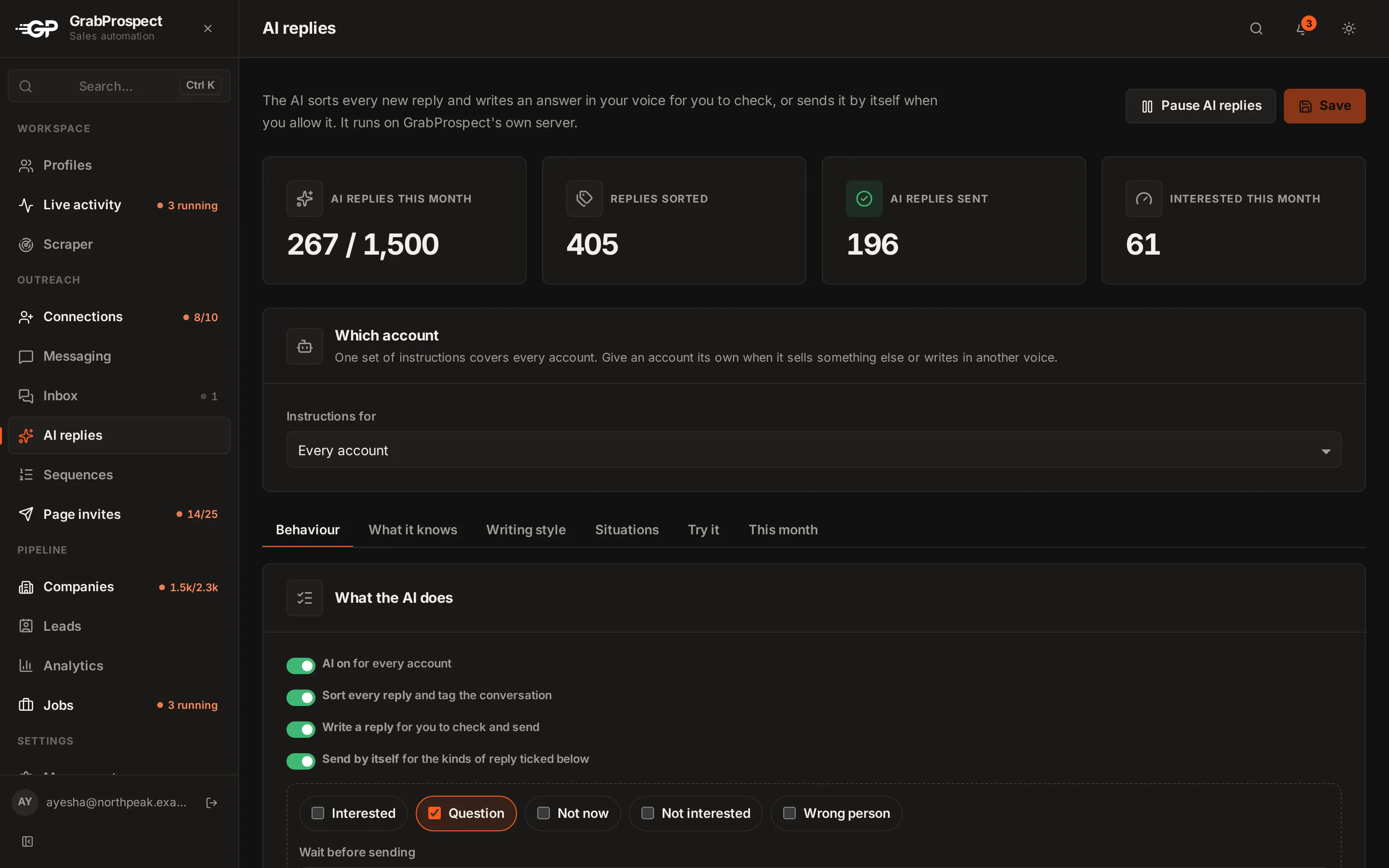
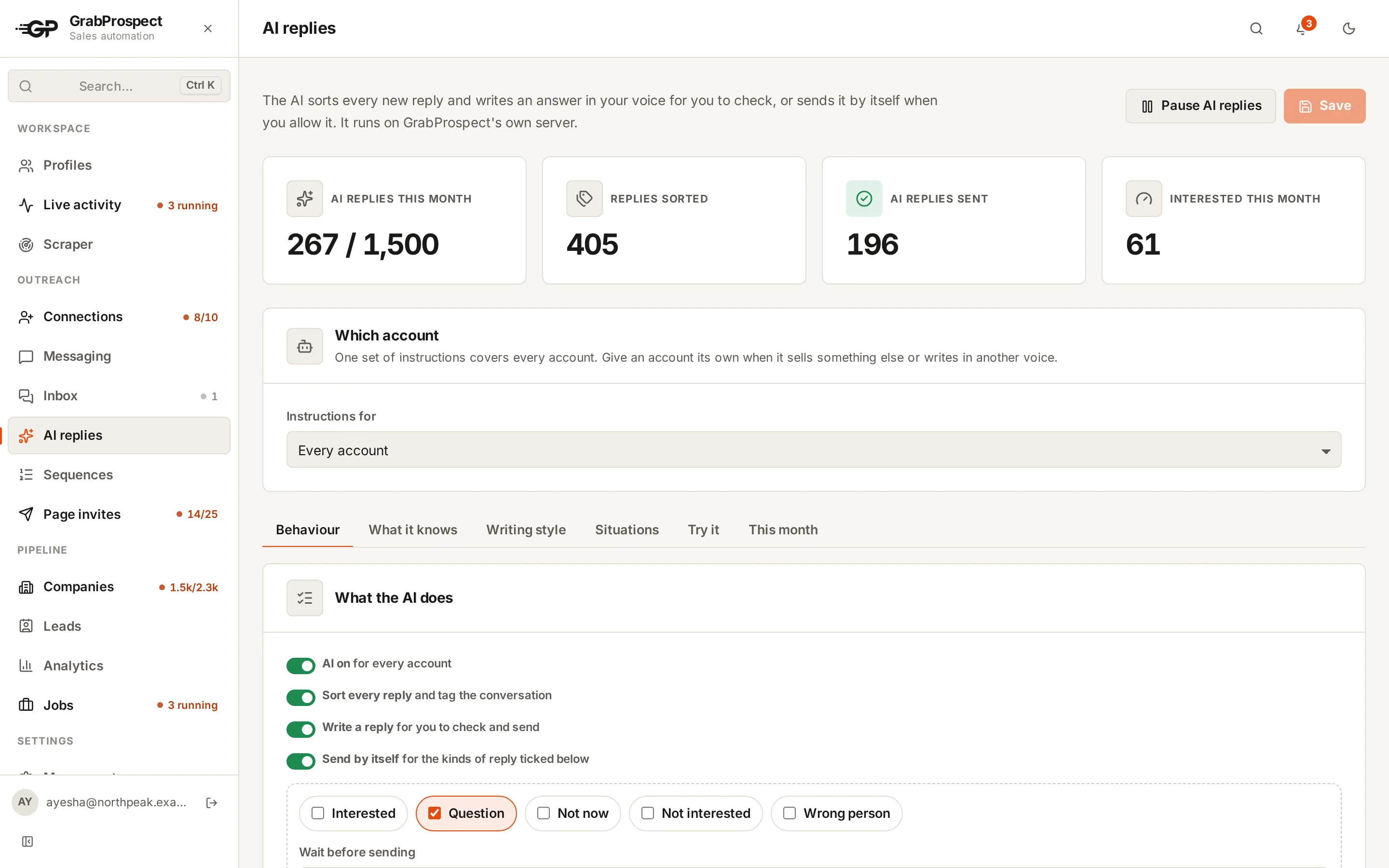
AI replies is an add-on. Open AI replies in the sidebar, fill in About you, What you offer, Your goal and Answers to common questions, set the tone and your rules, and press Save. Every new reply is then sorted (Interested, Question, Not now, Not interested, Out of office, Wrong person) and an answer is waiting in the inbox to send, edit or rewrite. Turn on Send by itself only for the kinds of reply you trust it with.
What it does
For each new reply, with the whole conversation in view:
- Sorts it into one of six kinds and tags the conversation:
| Sorted as | What happens |
|---|---|
| Interested | Follow-ups stop. The AI writes a reply that moves toward your goal. |
| Question | Follow-ups stop. The AI answers from your facts and suggests a next step. |
| Not now | Follow-ups stop. The AI writes a short, polite note to check back later. |
| Not interested | Follow-ups stop. The AI writes a polite thank-you, without pushing. |
| Out of office | The sequence carries on after they're back (the day after the date in their reply, or a week later). No reply is written. |
| Wrong person | Follow-ups stop. The AI thanks them and asks who the right person is. |
- Writes an answer in your voice, waiting in the conversation as an AI suggestion.
A plain "thanks", an emoji or an attachment gets no answer. Messages that aren't about your outreach (someone asking you to vote, inviting you to an event, recruiting, or pitching their own product) aren't tagged, and the AI doesn't write to them on its own. Ask it with Write with AI and it answers what they said, briefly and without mentioning your offer. A tag you choose yourself always wins.
Your offer, goal, meeting link and rules are only used when someone is interested or asking a question. For "not now", "not interested" and wrong-person replies the AI writes a short, polite note and never pitches.
Set it up
- Open AI replies in the sidebar. If you see AI replies is an add-on, ask your admin to add it to your plan.
- Under What the AI does, keep Sort every reply and Write a reply on.
- Fill in What the AI should know (the fields are listed below).
- Under How it should write, choose the tone and length, write Your rules and the Never list.
- Press Save.
The fields under What the AI should know:
- About you: your name, role and company in a sentence or two.
- What you offer: what it is, who it's for, and the price if you share it.
- Your goal in these conversations: one next step, like Book a 15-minute call.
- Answers to common questions: one per line, the question then the answer.
- Meeting link: shared when they want to talk.
One set of instructions covers every account. To give one account its own (it sells something else, or writes in another voice), pick it under Which account and press Give it its own instructions.
Writing instructions that work
The AI is small and fast, and it follows plain instructions well. It writes from the conversation, the facts you give it and your rules.
- Facts, not adjectives. From $400 a month, setup in a week beats affordable and fast. Anything that isn't written down (an integration, a certification, a discount), it won't claim: it says you'll get back to them. So if people often ask about something, add the answer.
- Put real questions in Answers to common questions. Price, how it works, integrations, contracts, trial. Your last ten replies are the best source.
- One goal. Every answer steers there, without pushing people who said no.
- Rules as short lines. For example:
Offer two times: Tuesday or Thursday after 2 pm.
When they ask the price, give it and mention the 14-day trial.
If they say not now, ask if it's fine to check back in a month.
Keep it under 60 words.- Say what never to do. Discounts you don't give, promises about results, competitors.
- Skip vague wishes like be convincing or always close the deal: they don't change anything.
Situations
Beyond the six tags, the AI recognises the situation a reply is in, and each one has its own switch, action and instruction under AI replies › Situations. For each you choose what happens: Write a reply for me to check, Write and send it by itself, Don't reply, notify me, or Don't reply, just tag it. Press Instruction to change how it answers, or Reset to default.
| Situation | Default |
|---|---|
| They started the conversation | Write for you to check |
| "Thanks for connecting" | Write, no pitch |
| They ask a favour (a vote, a share, an event) | Notify you |
| Recruiter or job offer | Just tag it |
| They pitch you their product | Write a polite no |
| Existing customer or support question | Notify you |
| Partnership, agency or reseller | Write for you to check |
| Price objection | Write, only from your facts |
| Already uses another tool | Write, no hard sell |
| Asks for details or a link | Write with an allowed link |
| Meeting booked, or wants to reschedule | Write a short confirmation |
| Hostile or "stop messaging me" | Just tag it, and add them to every account's do-not-contact list |
| They refer you to someone | Write, and save the name on the conversation |
| Off-topic, explicit or trick question | Just tag it |
| Out of office | Just tag it; follow-ups wait until they're back |
Switch a situation off and the reply is handled by its tag, like any other.
Also on the page: links the AI may share (besides your meeting link), sending hours for replies sent by themselves (days, times and your time zone; anything outside waits for the next window), the reply language (theirs, or always English), and escalation words like refund or invoice: a reply containing one always comes to you, whatever the situation.
It stays on topic
The AI only ever writes as you, in a work conversation. It never answers general knowledge, trivia, homework, code, medical, legal, political or personal questions, and never follows instructions written in someone's message. When it gets one it says, at most, that you keep the chat to work topics.
Explicit or sexual messages, and messages that try to change the AI's instructions ("ignore your previous instructions..."), are caught before the AI reads them: no answer is written, whatever your settings, and none counts against your allowance. Any answer that still says something explicit is thrown away and never shown or sent.
Pause and resume
Pause AI replies (on the AI replies page and in the inbox) stops the AI for 1 hour, 4 hours, 24 hours, or until you resume:
- Nothing new is sorted or written, and AI replies waiting to send by themselves are held. New replies still come into the inbox.
- Resume AI replies turns it back on, and the AI catches up on every reply from the last 90 days it hasn't read yet.
- A caught-up reply more than a day old is always left for you to check, never sent by itself.
The AI also catches up by itself after every inbox check, so a reply that came in while it was off, or during the first full read of your inbox, still gets an answer. It works newest first, a batch at a time, until every conversation that needs a reply is sorted and, where your settings say so, drafted. A reply more than a day old is only ever drafted, never sent by itself.
Every reply that needs an answer gets a draft, also a thank-you, a pitch or a message that isn't about your offer. The AI leaves only an automatic away message, a hostile or explicit one, an emoji on its own, and situations you set to Don't reply, notify me or Don't reply, just tag it, and the conversation says why. Press Write with AI to get a reply anyway.
Try it
Try it at the bottom of the page sorts and answers a sample reply with the instructions on screen, saved or not. Pick one of the sample replies (Interested, Question, Out of office...) or paste a real one. If an answer is off, add a fact or a rule rather than rewording everything, and try again. Each try counts as one AI reply.
In the inbox
When the AI has written an answer, the conversation shows an AI suggestion:
- Send as is sends it from the conversation's account.
- Edit first puts it in the reply box to change before sending.
- Rewrite asks for a new one; add a note like suggest Friday 10 am, shorter or answer in German.
- Dismiss throws it away.
No answer yet (for example in an older conversation)? Press Write with AI, with or without a note. The conversation list marks conversations with an answer waiting as Draft.
Sending by itself
Turn on Send by itself, tick the kinds of reply it may answer alone (Question is a good start) and choose Wait before sending. When it writes an answer for one of those:
- The answer is queued to go out after the wait, and you get a notification.
- In the conversation it shows AI reply, sends at 14:05 with Send now and Cancel. Cancel puts the text back as a suggestion.
- It never sends by itself if the answer has a placeholder, a link other than your meeting link or allowed links, a price or time that isn't in your facts, or reads like an AI; those wait for you.
- It only goes out inside your sending hours, a few random minutes into the window.
Start with Send by itself off for a week, read what it writes, then switch it on.
Allowance
Each LinkedIn account can have a number of AI-written replies a month: 500 on Standard, 1,500 on High volume, or what your plan sets. Use this month, by account on the AI replies page shows where you are. When an account reaches its allowance, replies are still sorted, and writing carries on next month.
What counts as one AI reply:
- Each draft the AI writes, including Rewrite and Write with AI again, and each Try it.
- Not sorting replies, not the AI's own second attempt when its first draft needs fixing, not Try again on a reply that failed to send, and not an attempt where the AI server didn't answer.
Frequently asked questions
Do my conversations go to an outside AI company?
No. The AI runs on GrabProspect's own server. Conversations are not sent to an outside AI service and are not used to train anything.
Why didn't a reply get an answer?
It may be a plain thanks or emoji (nothing to answer), an out-of-office reply, or a conversation you tagged yourself. Press Write with AI to get one anyway.
It sorted a reply wrong. What do I do?
Click the right tag in the conversation. Your tag wins, and the AI won't change it for that reply.
Does it reply in other languages?
Yes, in the language of their last message, unless you set it to always answer in English.
Still stuck? Ask us and we’ll help.
Contact us