Two-step sign-in and account security
Turn on 2-step sign-in with an authenticator app, save recovery codes, and how GrabProspect protects your account and LinkedIn sessions.
Updated
Quick answer
In Settings, turn on 2-step sign-in: scan the QR code with an authenticator app, enter the 6-digit code, and save your recovery codes. After that, signing in needs your password and a code. Admins can require 2-step sign-in for admins or everyone. Saved LinkedIn passwords are encrypted, and repeated wrong passwords or codes are blocked.
Turn on 2-step sign-in
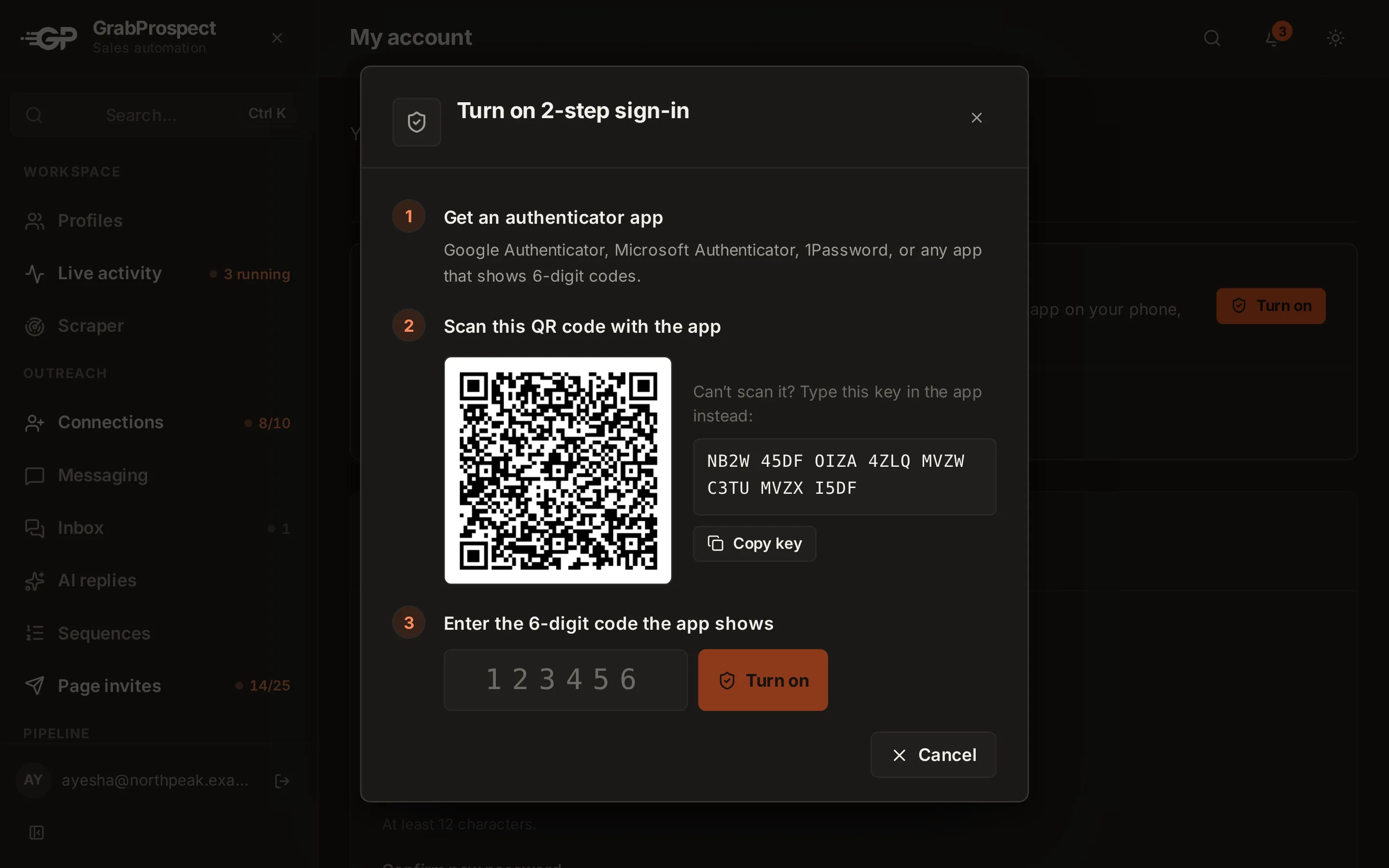
- Open Settings › 2-step sign-in › Set it up.
- Get an authenticator app (Google Authenticator, Microsoft Authenticator, 1Password, or any app that shows 6-digit codes).
- Scan this QR code with the app, or type the key shown.
- Enter the 6-digit code the app shows and turn it on.
- Save your recovery codes. They're shown only once; each one signs you in once if you lose your phone.
Signing in
After your password, enter the code from your app, or a recovery code. When you're running low on recovery codes, make new ones; the old ones stop working.
How your account is protected
- 2-step sign-in, which admins can require.
- Saved LinkedIn passwords are encrypted.
- Your own password is stored as a slow one-way hash.
- Repeated wrong passwords or codes are blocked.
- You get an email when your password or 2-step sign-in changes.
More on how data is handled: security.
Frequently asked questions
I lost my phone. How do I sign in?
Use one of your recovery codes instead of the app code, then set up 2-step sign-in again on your new phone.
Can I turn 2-step sign-in off?
Yes, from Settings, unless your admin requires it.
Still stuck? Ask us and we’ll help.
Contact us