Notifications
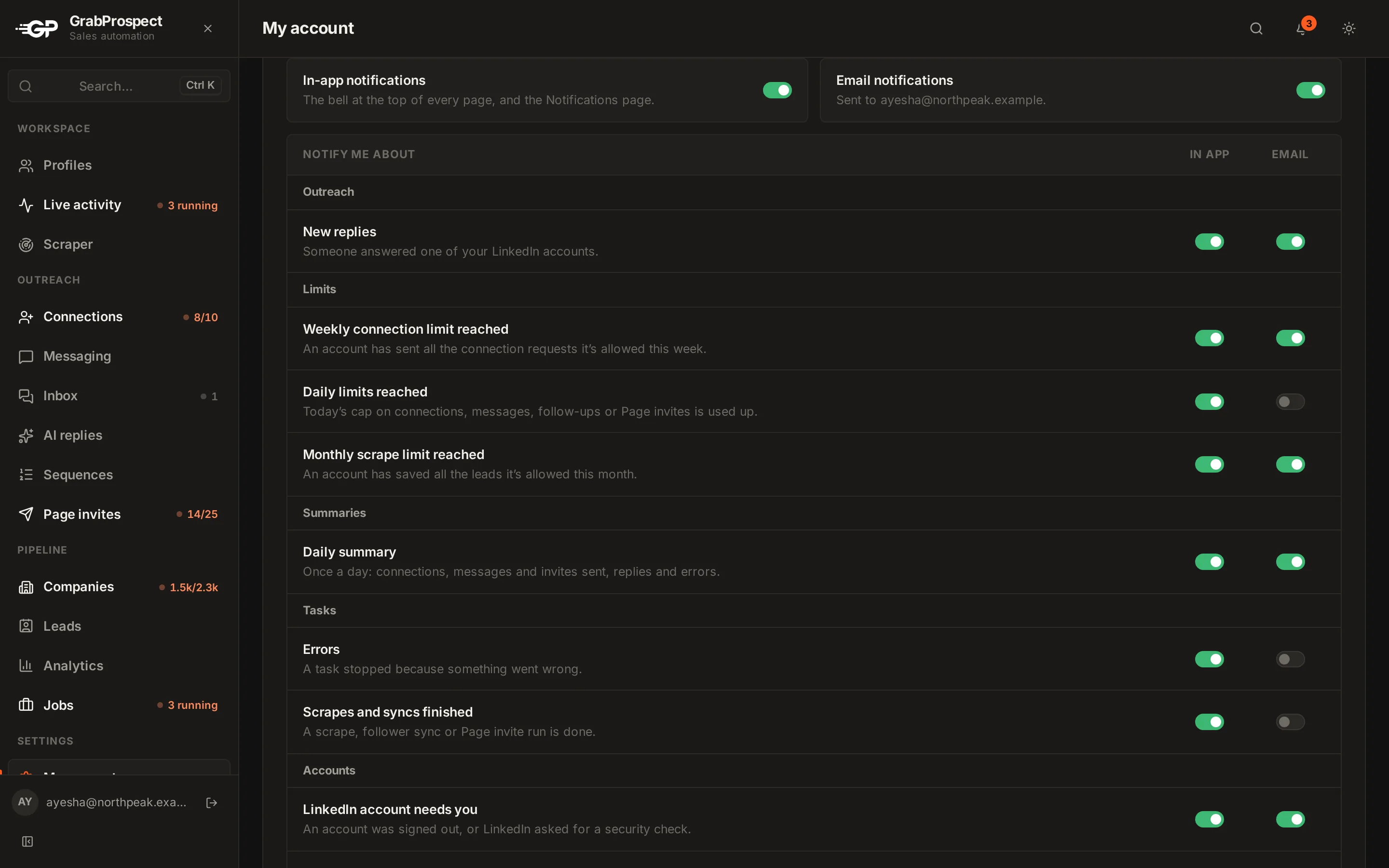
Choose which events notify you in the app and by email: replies, limits reached, errors, finished tasks, accounts that need you, and the daily summary.
Updated
Quick answer
The bell at the top of every page shows notifications; the Notifications page lists them all. In Settings, choose what you hear about (new replies, weekly and daily limits, monthly scrape limit, errors, finished scrapes and syncs, accounts that need you, the daily summary) and whether each arrives in the app, by email, or both.
What you can be notified about
| Type | Example |
|---|---|
| New replies | Someone answered one of your accounts |
| Weekly connection limit reached | An account sent all LinkedIn allows this week |
| Daily limits reached | Today's cap on invites, messages or Page invites is used |
| Monthly scrape limit reached | An account saved its monthly leads allowance |
| Daily summary | Invites, messages, replies and errors for the day |
| Errors | A task stopped because something went wrong |
| Scrapes and syncs finished | A scrape, follower sync or Page invite run is done |
| LinkedIn account needs you | Signed out, or LinkedIn wants a code or security check |
Choose how
In Settings › Notifications, turn In-app notifications and Email notifications on or off, then choose each type for the app and for email. Set the time for the daily summary. Changes save right away.
Frequently asked questions
Where do email notifications go?
To the email address you sign in with.
Can I turn off the daily summary?
Yes, in Settings, for the app and email separately.
Still stuck? Ask us and we’ll help.
Contact us